

A fresh order for your whole list

List RandomizerKeep every item. Change the order.

Paste tasks, names, ideas, or labels and shuffle the complete list. You control any cleanup; the original entries stay intact by default.

Free to use · No account · Runs in your browser

Two sets of four paper strips with matching symbols arranged in different orders

Give your list a new order

Start with the sample or paste one item per line. Up to 5,000 entries.

Your list

One item per line. Maximum 5,000 lines, 120 characters per line, 200,000 characters total. Duplicate items, spaces, and blank lines are kept by default.

Optional cleanup

0 surviving line(s) trimmed · 0 blank line(s) removed · 0 blank entry/entries kept · 0 duplicate item(s) kept.

6
Source lines
6
Items to shuffle
Ready to shuffle every item. Cleanup is off by default.

Your shuffled list

Shuffle your list to see its new order here.

Your list stays in this tab. No uploads or automatic saving. Reloading starts a new session.

The same ingredients, a different sequence

Use a full shuffle when every item still needs a place.

A random order without losing your work

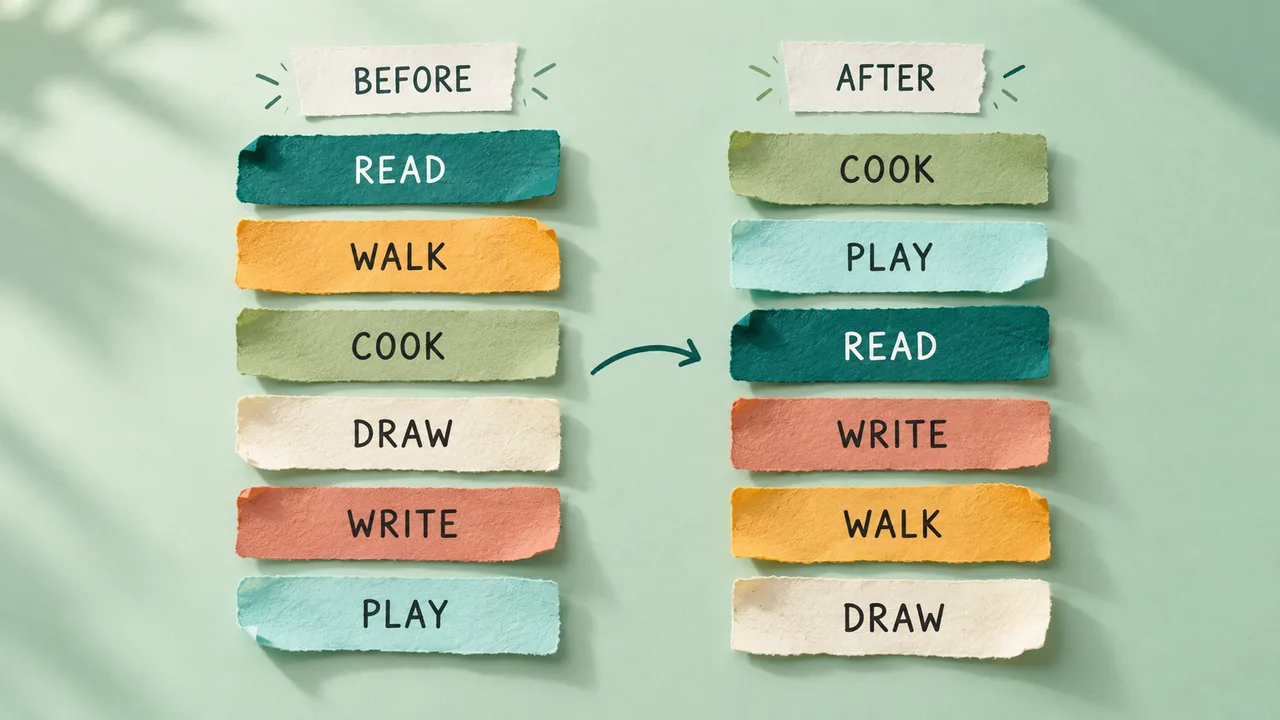
A reading queue, a set of practice prompts, and a collection of weekend ideas can all benefit from a fresh sequence. This list randomizer assigns every entry a position rather than selecting a handful of winners. The numbered result makes that order easy to follow, while the source line beside each item helps you check it against your input. Repeated labels remain separate entries, so a list containing two copies of the same task still contains two copies after the shuffle.

Two columns of colored paper strips show the same six activities in their original and shuffled order.

Give every speaker a place in the order

When four people are presenting, shuffle their complete list to create four ordered positions. Nobody becomes a winner or drops out of the result: each original entry still has a place. Share the chosen order before the session, and copy or download it before running another shuffle. The tool changes the sequence only; it does not allocate time slots, track attendance or manage a live queue.

Four workshop participants wait beside a microphone on floor markers numbered one through four.

How to shuffle a list

Review the input, choose the rules, and keep the result you want to use.

  1. 01

    Paste one item on each line

    Copy a single spreadsheet column or type your entries directly into the input. A comma within an item stays part of that item, which is useful for labels such as Paris, France. Tabs also stay inside the line. The tool does not interpret a pasted block as a spreadsheet or parse quoted CSV records. If your source has multiple columns, select the column you want before copying it.

    • Keep each line within 120 characters.
    • Use no more than 5,000 source lines or 200,000 characters.
  2. 02

    Choose whether to clean the input

    Both cleanup switches start off. Turn on trimming only if spaces at the beginning or end of an item are accidental. Turn on blank-line removal if empty or whitespace-only lines should not occupy positions. The counters show how many surviving lines were trimmed and how many blank lines were removed. These options affect the processed result; they do not rewrite the text in your input field.

    A trailing line break creates a final empty entry unless you choose to remove blank lines.

  3. 03

    Shuffle, check, and export

    Press Shuffle list to generate the complete order. Each entry appears once, including intentional repeats and retained blank lines. For larger lists, use the result pagination to inspect fifty entries at a time. Copy and download always include the entire result, even when you are viewing a later page. Press Reshuffle for another independent order, or export the current one before replacing it.

    Shuffle the sample

Control what changes

Reordering and editing are separate decisions.

Repeated items keep their identity

Two matching labels are not automatically combined. Each source line keeps its original number, even when cleanup removes other lines around it. This is useful for repeated practice questions, identical inventory labels, or separate people who share a name. Add an identifier to a label when the distinction needs to be visible outside this page.

Readable positions, flexible text output

The result display is always numbered. By default, clipboard and TXT output contain only the item text in shuffled order. Enable Include numbers in copied text and TXT if you want a readable numbered checklist. This formatting switch does not run another shuffle. CSV always provides separate position, source line, and item columns.

Keep the exact order you chose

Copying or downloading reads the current result without generating new randomness. Save a TXT file for another plain text workflow, or choose CSV when you need the source-line reference in a spreadsheet. Reloading the page discards the session, so export before closing the tab if you need to keep the arrangement.

A small example you can verify

Count the entries before worrying about where each one lands.

  1. 01

    Five lines, including a duplicate and a blank

    Imagine five input lines: Read, Walk, Read, an empty line, and Cook. With both cleanup options off, the output has five positions. One possible order is Cook, Read, an empty entry, Walk, Read. The two Read entries have different source-line numbers. The empty entry has a visible blank marker in the interface, but that marker is not inserted into your copied text or TXT file.

    If you enable blank-line removal, the result clears and the processed count becomes four. Generate again to shuffle those four entries. No other entries are removed.

  2. 02

    Spaces can be meaningful too

    Suppose a line contains two spaces before a product code and one space after it. Those spaces are retained by default and remain in plain text exports. Enabling trimming removes only leading and trailing whitespace; spaces inside a label remain unchanged. A line containing only spaces counts as blank for the removal option, even when trimming is off.

    CSV escapes quotation marks and keeps commas inside a quoted field. Formula-like values receive a leading apostrophe for safer spreadsheet handling. Use unnumbered TXT when preserving the exact item characters is the priority. Line separators in text exports are normalized to newline characters.

Pick the right workflow for the job

A random order is useful when every entry belongs in the final sequence.

  1. 01

    Practice prompts and creative queues

    Shuffle vocabulary prompts, drawing ideas, discussion topics, or a personal reading queue to move beyond the same starting point. Keep repeated prompts if you intentionally want extra practice. The tool changes order only: it does not rank difficulty, estimate task duration, or guarantee that neighboring items are different. Review the sequence before using it if your activity has additional constraints.

  2. 02

    A complete order or a smaller selection?

    If your goal is to select one volunteer or a few winners, use the Random Name Picker. A full shuffle instead gives every entry a position. Decide what the positions mean before running it, especially when other people will use the result. The page has no built-in timer, attendance tracking, or speaking-session management; it provides an ordered list that you can take into your own workflow.

    Open Random Name Picker
  3. 03

    Save outputs instead of expecting replay

    Every click of Reshuffle starts an independent shuffle. There is no seed field or replay identifier, so the page cannot regenerate a chosen order on demand. An export preserves the result itself. If several people need the same order, share the saved file through your usual channel. Pasting the original list into another tab and shuffling again will not synchronize the two sessions.

List randomizer questions

What is preserved, what is optional, and what a shuffle can promise.

Does shuffling remove any items?

No entries are removed by the shuffle itself. Optional blank-line removal discards only lines that contain no visible text. Its counter reports the number removed before you generate. A completely empty input field contains zero entries and needs input before shuffling; a nonempty field containing blank lines can be shuffled if you choose to retain them.

Can I keep duplicate items in the list?

Yes. Matching lines always remain separate entries in this tool. Original line numbers distinguish them on screen and in CSV. There is no automatic deduplication. If duplicate labels are accidental, edit your input first; if they represent separate people or objects, give them recognizable identifiers where needed.

Can I copy the result without numbers?

Yes. Numbered positions are always shown on the page, but the copy and TXT numbering switch starts off. Leave it off for plain lines of item text. Turn it on to add a position prefix to each exported line. CSV has its own position column regardless of this switch.

Why did an item stay in the same position?

A valid random order can leave one or more items in their original positions. An entire sequence can also repeat, particularly with a short list. The shuffle uses Fisher–Yates with unbiased indexes drawn from the browser’s cryptographic random source. It does not reject an outcome merely because it resembles the input or the previous result.

How do I save an order for later?

Download the current TXT or CSV file, or copy the full result. The page does not save a history and does not provide reproducible seeds. Changing the input or cleanup settings clears the previous output so that you cannot accidentally export an order based on older rules. Export before making those changes if you need both versions.

Is my pasted list uploaded or saved?

The shuffle and list processing happen in this tab. The tool does not send the entries to a server or write them to browser storage. Reloading restores the sample rather than your roster. Clipboard copies and downloaded files leave the tab only when you choose those actions, so manage those copies according to your own needs.

List Randomizer

Ready for a fresh sequence?

Paste your complete list, check the cleanup counters, and shuffle every entry into an order you can copy or save.

Keep the version you want before reshuffling. The next order is a new independent result.

  • Free to use
  • No signup
  • Runs in your browser

A simple path to your next activity

  1. Paste your list

    Add one item on each line.

  2. Check the options

    Choose whether to trim spaces or skip blanks.

  3. Shuffle and save

    Copy or download the order you want to keep.

Your list stays in this tab until you choose to copy or download.