
Free · Every entry included · No signup

Random Group GeneratorBring people together, at random.

Turn a roster into ready-to-use groups for your class, workshop, or team activity. Set the group count or maximum size, add group names, and share the assignments.

Even group sizes · Custom names · Copy, TXT & CSV

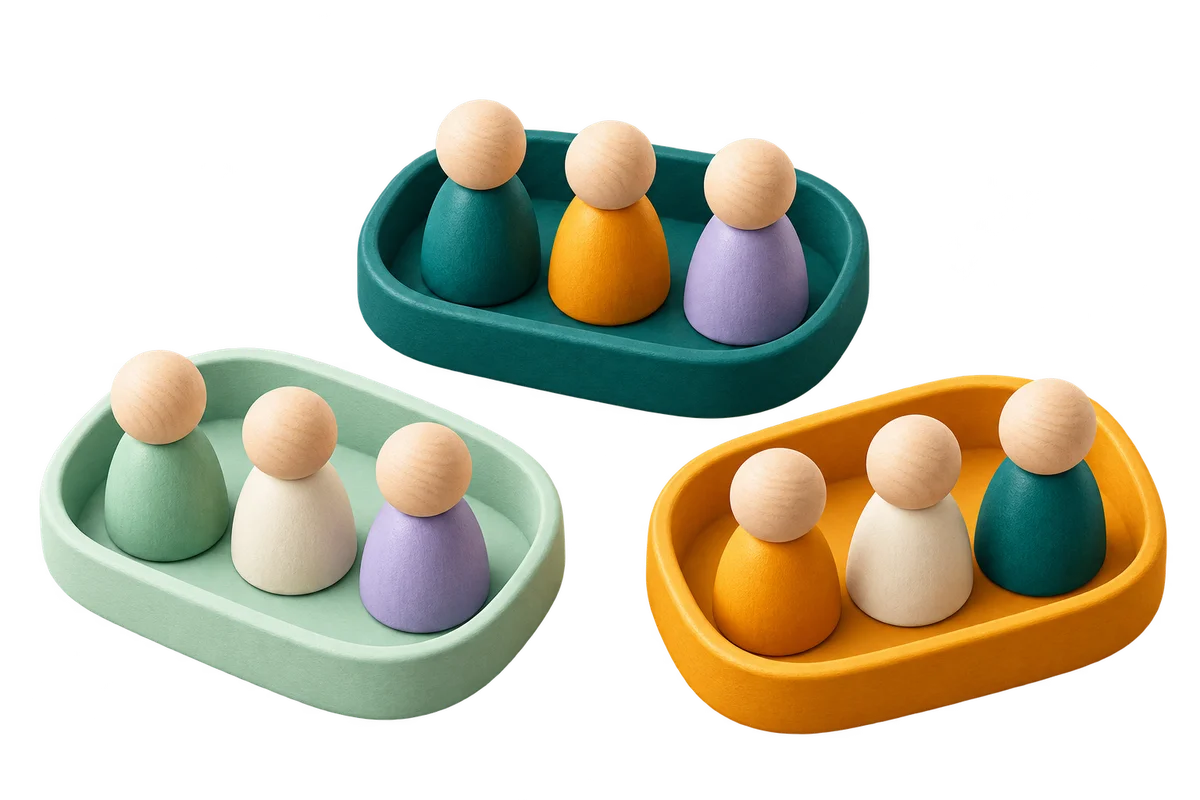
Nine participant tokens divided into three groups of three in separate trays

A place for everyone on your list

Try ten sample participants, or paste your own roster of up to 5,000 entries.

Your participants

One entry per line. Up to 5,000 entries, 120 characters each. Blank entries are ignored; matching names stay separate.

One label per group, in order. Blank or missing lines use Group 1, Group 2, etc. Maximum 120 characters per label.

10
Participants
3
Groups
3–4
Size range

Create exactly this many groups. Group sizes differ by at most one person.

Ready to group your participants. Every entry will be included once.

Your groups

Generate groups to see the assignments here.

Your roster and groups stay in this tab. No uploads or automatic saving. Reloading starts a new session.

From one roster to a room ready to work

Spend less time calling out names and more time on the activity.

Make small-group activities easier to start

Use the random group generator before a discussion, a workshop exercise, or a casual team game. Every roster entry receives exactly one assignment in the current result. Group headings show how many people belong together, and original entry numbers distinguish participants with identical names. Choose labels that match your room, such as Cedar, Maple, and Oak, then copy the assignments into your session notes. The tool handles the headcount while you check whether the arrangement suits the activity.

Overhead illustration of twelve workshop participants arranged around four separate colored tables, with three people at each

Make an uneven headcount easy to explain

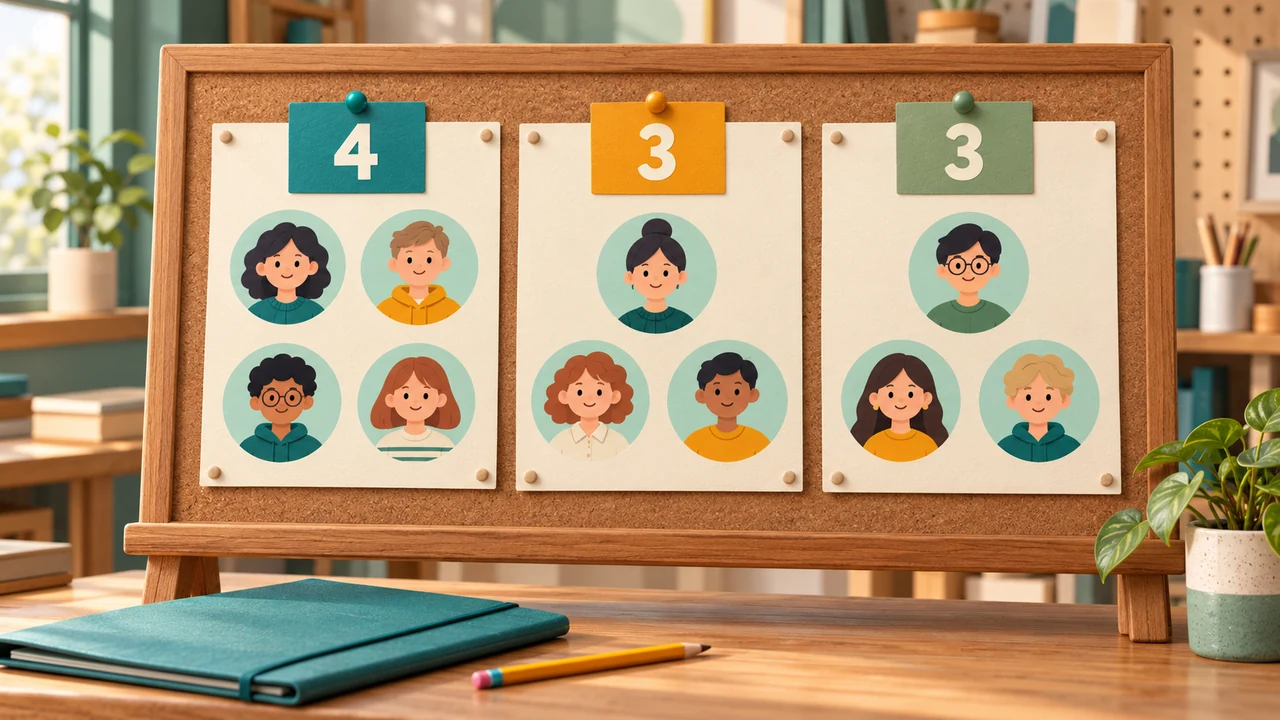
Ten participants divided into three groups gives one group of four and two groups of three. The generator keeps the sizes as close as possible rather than leaving someone out. Review the group labels and member counts, then copy or download the assignments so everyone can find their group. These are balanced headcounts; skills, preferences and earlier team arrangements are not part of this basic split.

A workshop noticeboard with three roster sheets containing four, three and three participant avatars.

How to split names into groups

Use the same roster in two different ways, depending on what your room needs.

  1. 01

    Prepare the participant list

    Paste one participant per line. Choose commas, semicolons, or tabs when your source uses those separators. Spaces at the beginning and end of an entry and completely blank entries are ignored. A name containing a comma should use New lines as the separator. Repeated labels remain separate participants; add an initial or another brief identifier when two people share a name. Check the entry total against attendance before generating your groups.

    • Leave out absent participants before starting
    • Use one entry for each participant
  2. 02

    Choose a fixed count or a maximum size

    Select Number of groups when you have a fixed number of tables, rooms, or teams. Enter how many groups you need, and the tool distributes everyone across exactly that count. Select Maximum people per group when the main limit is how many people can work together. The tool calculates the minimum number of groups needed to stay within that limit, then balances their sizes. The summary above the settings previews the group count and size range.

    Maximum size is a ceiling, not a promise that every group will be full. Ten people with a maximum of three produce groups of 3, 3, 2, and 2.

  3. 03

    Name, generate, and save the groups

    Optional group names go in a separate box, one per line in group order. Leave a line blank to use its numbered default; missing names also get defaults. Generate groups creates the assignments, and Regroup shuffles everyone again with the same settings. Copy groups provides plain text. Download TXT saves a readable list, while Download CSV saves one participant per row for a spreadsheet. Changing the roster, separators, names, or size settings clears the previous result.

    Return to the group generator

Two useful ways to divide a roster

Both modes include every entry and keep group sizes within one person of each other.

Exactly the number of groups you need

A room with four discussion tables needs four groups, even when attendance changes. The tool first gives each group an equal base number of people, then gives one extra person to each of the first few groups until the remainder is used. Group membership is randomized before those sizes are filled.

A clear upper limit on group size

When an activity works with no more than four people together, set the maximum to four. The tool adds enough groups to accommodate the entire roster and distributes people evenly. No group exceeds the selected maximum. A requested size larger than the roster simply produces one smaller group.

Results you can identify and reuse

Each result includes group names, member counts, and original entry numbers. TXT and copied output preserve the readable group structure. CSV includes the group number, group label, entry number, and participant label. Formula-like spreadsheet values are escaped as text to reduce accidental formula execution when opening an export.

Worked examples with an uneven roster

The sizes are predictable. Which participants share each group is random.

  1. 01

    Ten participants, three tables

    Use the sample roster: Alex, Jordan, Sam, Taylor, Morgan, Casey, Riley, Jamie, Avery, and Quinn. Select Number of groups and enter 3. Set the group names to Cedar, Maple, and Oak on separate lines. The resulting sizes must be 4, 3, and 3. One possible assignment is Cedar: Taylor, Alex, Quinn, Sam; Maple: Casey, Avery, Jordan; Oak: Morgan, Jamie, Riley. Your actual assignment will probably differ.

    All ten original entries appear exactly once. The first group has the extra place because ten divided by three leaves a remainder of one. The shuffled order determines who gets that place; the original roster order does not reserve it for a particular person.

  2. 02

    The same ten people, at most three together

    Switch to Maximum people per group and enter 3. The previous result clears because its rules no longer apply. The new split needs four groups and has sizes 3, 3, 2, and 2. With the same three custom labels, the fourth group uses Group 4. This approach avoids creating a last group of just one person when a more even split is possible.

    If you actually need exactly three groups, return to Number of groups. That setting produces 4, 3, and 3 instead. You cannot simultaneously fit ten participants into three groups and keep every group at three people or fewer.

Use random teams with realistic expectations

The generator balances the number of people, while you set the purpose and participation rules.

  1. 01

    What is randomized, and what is not

    The random team generator shuffles entry identities with a Fisher–Yates shuffle using the browser’s cryptographic random source. Integer selection uses rejection sampling to avoid a modulo bias. The shuffled roster is divided into the planned sizes without dropping or duplicating an entry. Regroup runs a new independent shuffle; it can produce some of the same partners, or even the same arrangement, especially with a small roster.

    The tool does not read skill, friendship, experience, availability, accessibility needs, or other constraints from names. Similar group sizes do not guarantee equal skill. There are no keep-together rules, forbidden pairs, or memory of earlier sessions in this version.

  2. 02

    Apply the result to your actual activity

    For a classroom discussion, decide how many tables you will use and label them to match the result. For a workshop, set a maximum size that leaves each person time to speak, then check the number of groups against your available space. For a casual game, explain that this is random membership rather than a skill-balanced team draft. If you need to choose a single spokesperson after groups are formed, paste that group’s members into the existing Random Name Picker.

    Choose a group spokesperson
  3. 03

    Protect the roster and resolve input issues

    Names, group labels, and assignments are kept in this browser tab’s memory. The tool does not upload them, attach them to analytics events, or store them for a later visit. General page analytics operate separately. Reloading restores the sample rather than your roster. Clear list removes the active roster, custom group names, and results. Copies and downloaded files remain wherever you save or share them.

    The limits are 5,000 participant entries, 120 characters per participant or group label, 200,000 roster characters, and 500 generated groups. Requesting more groups than people or providing more custom labels than groups produces an explanation. Correct the input and generate again; the tool does not quietly discard extra names or create empty groups. Large results display five groups at a time and fifty members per group page to keep the tool responsive. Use the next and previous controls to browse; copies and exports always include the complete assignment.

Random group generator FAQ

Answers about group sizes, reshuffling, names, and exports.

Can I choose the number of groups or people per group?

Yes. Number of groups fixes the exact count. Maximum people per group limits the size and lets the generator calculate the count. Check the preview before generating because the same number means different things in the two modes.

What happens when the number of people does not divide evenly?

The remainder is spread across groups, with each of the first groups receiving at most one extra person. Sizes differ by at most one. No participant is left out, and maximum-size mode never exceeds the limit you entered.

Can I copy or download the assignments?

Yes. Copy groups sends the current result to the clipboard. Download TXT saves a readable list, and Download CSV provides a spreadsheet table. If clipboard permission is denied, use either download button or select and copy the displayed text manually.

Can I change groups after generating them?

Regroup makes another random assignment. Editing the roster or settings clears the old assignment so you can generate with the new information. Individual members cannot be dragged between groups here; export the result if you need to make a considered manual adjustment elsewhere.

Will regrouping prevent the same partners from meeting again?

No. Each run is independent and may repeat a previous partnership. This random group maker does not store round history or enforce pair-avoidance rules. It is intended for one set of groups at a time.

Are two identical names treated as one person?

No. Every nonblank input entry has its own identity, even if the displayed labels match. Each is placed exactly once. Use the original entry numbers in the output, or edit the labels to distinguish two different people before generating.

Random Group Generator

Your roster is ready for its next activity

Choose the group count or maximum size, then create assignments everyone can follow.

For one name instead of a whole set of teams, use the instant name picker.

  • Free to use
  • No signup
  • Runs in your browser

A simple path to your next activity

  1. Check the roster

    Include everyone joining the activity.

  2. Choose group sizes

    Set the group count or maximum size.

  3. Share the groups

    Generate, review, then copy or download.

Free to use. No account, upload, or saved roster required.