

Your questions, a fresh order

Random QuestionPicker

Draw from your own question bank, reveal answers when ready and track completed prompts without repeating a row in this round.

Free • Local processing • No account

Clay study-card rack turning over a teal question card beside a mint notebook and blank score counter

Choose questions from your own bank

Paste one question per line, optionally followed by a pipe or tab and your answer.

Your question bank

One question per line. Optional answer after the first pipe (|) or tab; a tab takes precedence. Up to 500 rows, 500 characters per question, 1,000 per answer and 200,000 total characters. Empty lines ignored; duplicate questions retained.

UTF-8 TXT/TSV up to 800,000 bytes. No header or multiline cells. Editing or importing resets the round. Native Excel, Word, PDF and CSV imports are not supported.

Answers in the results start hidden. The editable bank still contains your answers; hiding is a presentation control, not exam security.

0/4
Drawn / bank
4
Remaining
0
Completed

1–500, no more than the remaining rows. Changing this number keeps the round. Too many requests produce an error without changing previous picks.

Each remaining row has equal chance. No row repeats until you reset the round; completed status does not change the pool.

Four sample questions: three with answers, one open-ended. Draw one or several.

Current question batch

Draw to see your question batch. Supplied answers start hidden.

Question content, answers and progress stay in this tab without input uploads or persistent storage by this tool. Export before refreshing.

A question bank you control

Choose the material first, then let the picker choose its order.

Draw your own revision and discussion prompts

A random question picker helps when you already have questions and want to choose the next one without scanning the whole list. Paste a revision bank, a meeting prompt list or your own quiz questions, then draw one item or a batch. You can attach an answer to any question and reveal it after discussing the prompt. The tool selects existing rows; it does not write new questions, research facts or generate answers. The built-in sample simply demonstrates the input format and can be replaced completely.

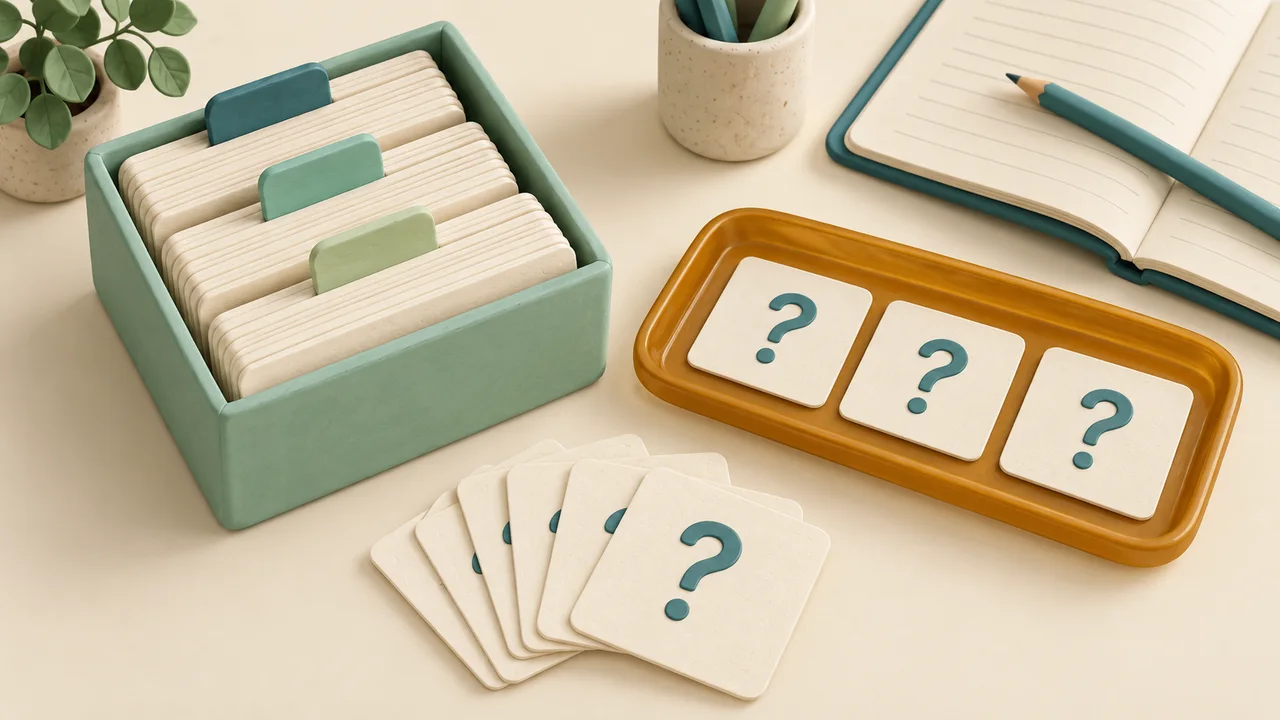
Overhead clay question-card bank with subject dividers and three selected cards in an amber tray

Keep selection and completion separate

A question leaves the available pool as soon as it is drawn, whether or not you show its answer or mark it completed. This prevents a difficult unanswered prompt from appearing again while you are still working through the same round. Completed is a manual progress label, not a correctness score. You can undo that label without returning the question to the available pool. Earlier selections remain accessible below the current batch, so a teacher or study partner can return to an unfinished prompt after drawing something else.

Adult learner reviews a question flashcard beside a face-down answer card and completion checkmarks

How to pick random questions from a list

Prepare the bank once and work through it at your own pace.

  1. 01

    Paste questions with optional answers

    Use one question per line. For an answer, write question | answer or paste two tab-separated columns from a spreadsheet. A tab takes precedence over a pipe, and the first separator divides the question from its answer; additional pipes are kept inside the answer. A row with no separator is a question without an answer. Blank lines are ignored. Upload UTF-8 TXT or TSV in the same format, without a header row. These are plain text formats, not Word, PDF, Excel workbook or quoted CSV imports.

  2. 02

    Choose a batch that fits the remaining pool

    Set the next draw count from one to five hundred, never more than the remaining number of rows. The page supports up to five hundred questions, with five hundred characters per question and one thousand per answer. Total input is limited to two hundred thousand characters, and imported files to eight hundred thousand bytes. Changing the draw count only affects the next draw and keeps the current round. If too few rows remain, the tool reports the problem and keeps your previous selections; it does not silently start another round or return a smaller batch.

  3. 03

    Reveal, complete and reset deliberately

    Draw the next batch, use Show answer on any row with a supplied answer, and mark prompts completed when your activity is finished. Hide answer reverses the visible reveal, while Mark unfinished reverses completion. The counters show drawn rows, available rows and manually completed rows separately. When the pool is exhausted, reset the round to return every question and clear all completion and reveal states. Editing, importing, clearing or restoring the bank also starts a fresh round because the question IDs and content may have changed.

Predictable rules for a random order

The picker keeps the original question and answer together.

No repeated row until you reset

Each valid question row has an independent numbered identity. Drawing samples the remaining rows without replacement using a partial Fisher–Yates shuffle and the browser’s secure random source. Each remaining row has the same chance of being selected at that draw. A batch cannot contain the same row twice, and later draws exclude every row already selected in this round. The input order does not give earlier questions priority. The page does not promise a certified lottery, a learning assessment or a particular sequence on a future visit.

Answers are optional and initially hidden in results

Questions without answers still work for discussion and icebreakers. A supplied answer stays attached to its question, even when the order changes. Showing an answer does not mark the question complete, and completing a question does not reveal its answer. The reveal button is a presentation convenience: the original answer still exists in the editable bank on this same page. This is not a secure exam viewer, a private answer vault or a remote student interface. Keep that visible input in mind before sharing your screen.

Export the whole current round

Copy, CSV and print include all drawn questions in draw order, their original IDs and completion status, including earlier batches inside the collapsed history. Answers are excluded by default. A separate Include answers in exports checkbox adds every supplied answer for drawn rows, even answers you have not individually revealed. This lets you prepare either a question-only record or a review key. Resetting or changing the bank turns that option off again. Undrawn questions are not part of a round export, so retain your original source file separately.

Example: a four-question review round

The sample combines factual answers and an open discussion prompt.

  1. 01

    Draw two questions, then finish the bank

    The sample asks how many sides a triangle has, which planet is known as the Red Planet, what process plants use to make food from light, and what skill you would like to practice. The first three rows have supplied answers; the last is open-ended. Choose two questions per draw. The first batch contains two different rows, leaving two available. The second batch contains the remaining two rows. Exact order varies, but all four original IDs occur once across the round. No new question is invented.

  2. 02

    Review a difficult prompt without drawing it twice

    Suppose you mark one question completed but leave the other pending. Drawing the second batch does not discard that unfinished question; open Earlier questions this round to find it again. You may reveal its answer and mark it completed there. If you attempt another draw after all four rows have appeared, the page reports that too few questions remain. Export the round, then reset if you want another pass. Reset preserves the editable bank and draw count while clearing selections, completion labels, reveals and the export-answer option.

Use a suitable bank for your activity

A useful draw starts with questions that belong together.

  1. 01

    Prepare classroom revision or a discussion warm-up

    For a quick lesson review, keep a focused bank from the material actually covered and attach the answers you want to discuss. For an icebreaker, leave answers blank and use completion to track which prompts the group has discussed. The tool does not choose who must answer, collect student submissions, grade responses or set a time limit. Use the separate student picker if you also need a participation order. Keep the question selection and the decision about who participates as distinct steps in your activity.

  2. 02

    Check duplicates and formatting before the round

    Identical question text remains separate if it appears on two rows. The page warns about repeated question wording, but it does not delete it: two similar prompts might have different answers or be intentional practice variants. No-repeat applies to row IDs, not meaning, so duplicated wording can still appear twice. Remove unintended duplicates before drawing. A literal pipe in a question should be handled with a tab-separated answer field, since otherwise the first pipe is the delimiter. Do not insert line breaks inside a question or answer; each new line starts another row.

  3. 03

    Keep the source and progress record locally

    Question content, supplied answers and progress stay in the current tab without input uploads or persistent storage by this tool. Refreshing or leaving loses the round. Copy or download useful progress before closing, and keep the original question bank if you want to import it again later. The exported CSV is a progress report rather than a restorable session backup. There is no automatic spaced repetition, cross-device synchronization or difficulty weighting. Every remaining row is treated equally regardless of how many times you have studied it elsewhere.

Random question picker questions

Own lists, repeat rules, answers and practical limits.

Can I pick questions from my own list?

Yes. Paste one question per line or import a UTF-8 TXT or TSV file. Add an optional answer after a pipe or tab. The tool draws from those rows only; it does not create new questions. Remove a spreadsheet header before pasting, since every nonblank row is treated as a question.

Does it avoid repeats across several draws?

Yes. A drawn row is excluded for the rest of this round, even if unfinished. Reset round deliberately returns every row to the pool. Identical wording on separate rows remains separate entries, so review the duplicate warning if you want every visible question text to appear only once.

Can I choose several questions at once?

Set the next draw count to any whole number from one to five hundred, up to the remaining pool size. A batch contains distinct remaining rows. If your requested count is too large, the draw is rejected and your previous round stays intact. Reduce the count or reset the round yourself.

How do I show an answer without losing the question?

Add the answer in the bank, draw the question, then use its Show answer button. Hide answer conceals it again in the result. Earlier batches also keep their controls. Revealing does not complete the question. The editable source still contains the answer, so this is not secure answer protection for exams.

Does completed mean I answered correctly?

No. Completed is a manual activity status, not a grade or mastery estimate. You can mark any drawn question completed or unfinished, with or without a supplied answer. Both states stay out of the available pool until you reset. The tool does not record your spoken or written response.

What happens when all questions have been drawn?

The page clearly marks the pool exhausted. It does not automatically reshuffle into a new round. You can finish pending prompts and export the history, then press Reset round. All rows become available again, completion and reveals clear, and export answers returns to its default off setting.

Will copying or printing reveal hidden answers?

By default, no answers are included, even if some are visible on screen. Include answers in exports is a separate explicit choice that includes all supplied answers for drawn questions, including unrevealed ones. Copy, CSV and print honor the same setting and contain the complete drawn history rather than only the latest batch.

Can I upload a workbook or recover yesterday’s progress?

This page accepts plain UTF-8 TXT and TSV, not native spreadsheet, PDF or Word files. It stores no persistent progress. Paste two plain columns or convert your bank to the supported text format, and save your source separately. Exported round reports are useful records but cannot restore a session automatically.

Random Question

Turn your own questions into a useful review round

Start with material you want to practice.

Draw, discuss and mark progress at your own pace.

  • Free to use
  • No signup
  • Runs in your browser

A simple path to your next activity

  1. Prepare the bank

    One question per line, with optional answers.

  2. Draw and review

    One or several questions, without repeat rows.

  3. Record the round

    Mark progress and choose whether exports include answers.

Questions and optional answers come from your own bank.