
Ready for the next classroom question

Random Student PickerA fresh turn for this lesson.

Keep your class rosters handy, mark who is sitting out, and select the next student without repeating a turn in this lesson.

No account · Optional local roster saving · No-repeat within one lesson

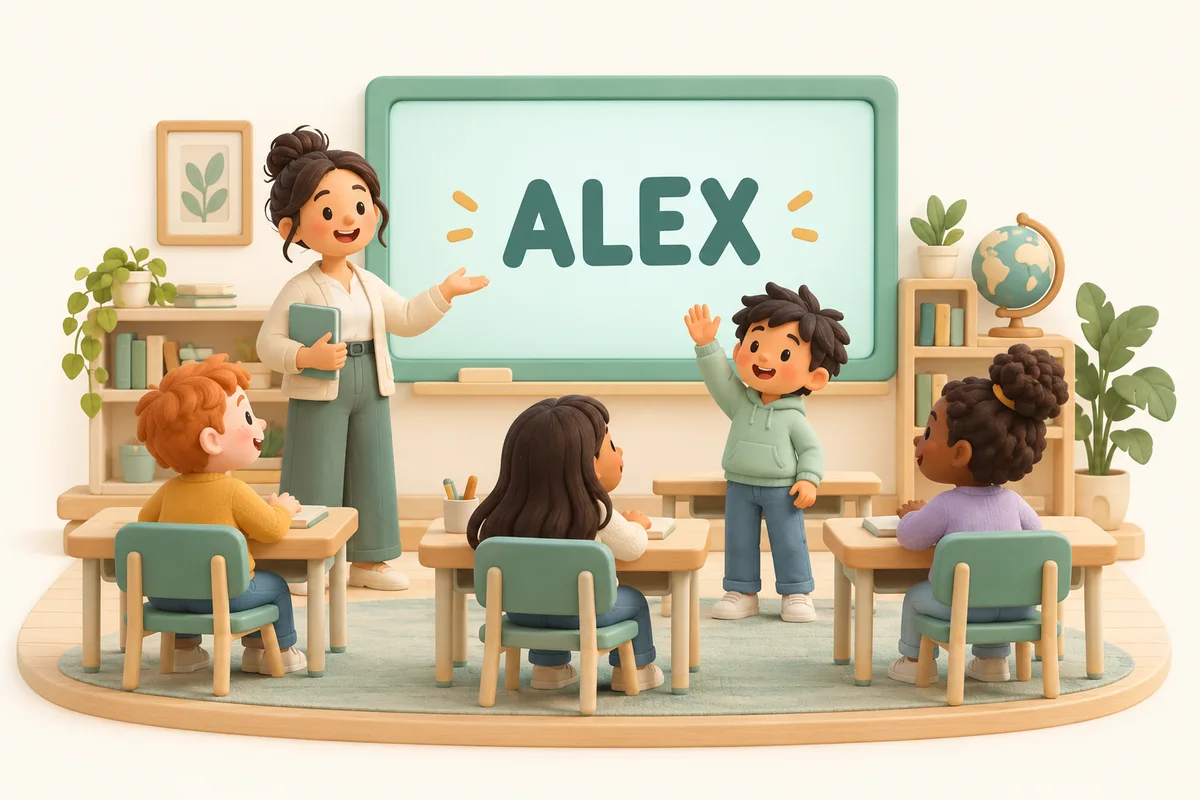
A clay classroom with a teacher, seated students, and a screen displaying the fictional name Alex

Which class is joining today?

Try the sample class, or paste a roster. Only the Save class button stores names on this device.

Switching classes discards unsaved edits and resets this lesson.

Up to 500 students, 120 characters each. Matching names remain separate entries. Editing resets this lesson.

This roster has unsaved changes. Saving is optional.

Absent or not participating

Check students to exclude from this lesson. Previously selected entries remain excluded.

5Students
0Sitting out
5Remaining

A new lesson clears all selections and absence marks. Refreshing or changing class also starts fresh.

Selected student

The next selected student will appear here.

Sample ready. Nobody selected yet.

This lesson’s selections (0)

No students selected in this lesson.

Names and selections are processed in your browser. Only Save class stores the roster locally; lesson history and absences are not saved. Use classroom aliases on shared devices.

Keep the lesson moving

A classroom routine with a clear start and finish.

One class, one active lesson

A random student picker is useful when you want to invite a contribution without manually choosing the next speaker. Select a saved class or paste one student per line, then mark anyone who is absent or not participating. Each draw chooses one of the remaining eligible entries. The selected student stays in the lesson history and cannot be picked again until the lesson resets. You can ask a question first, give everyone thinking time, and then reveal the next name.

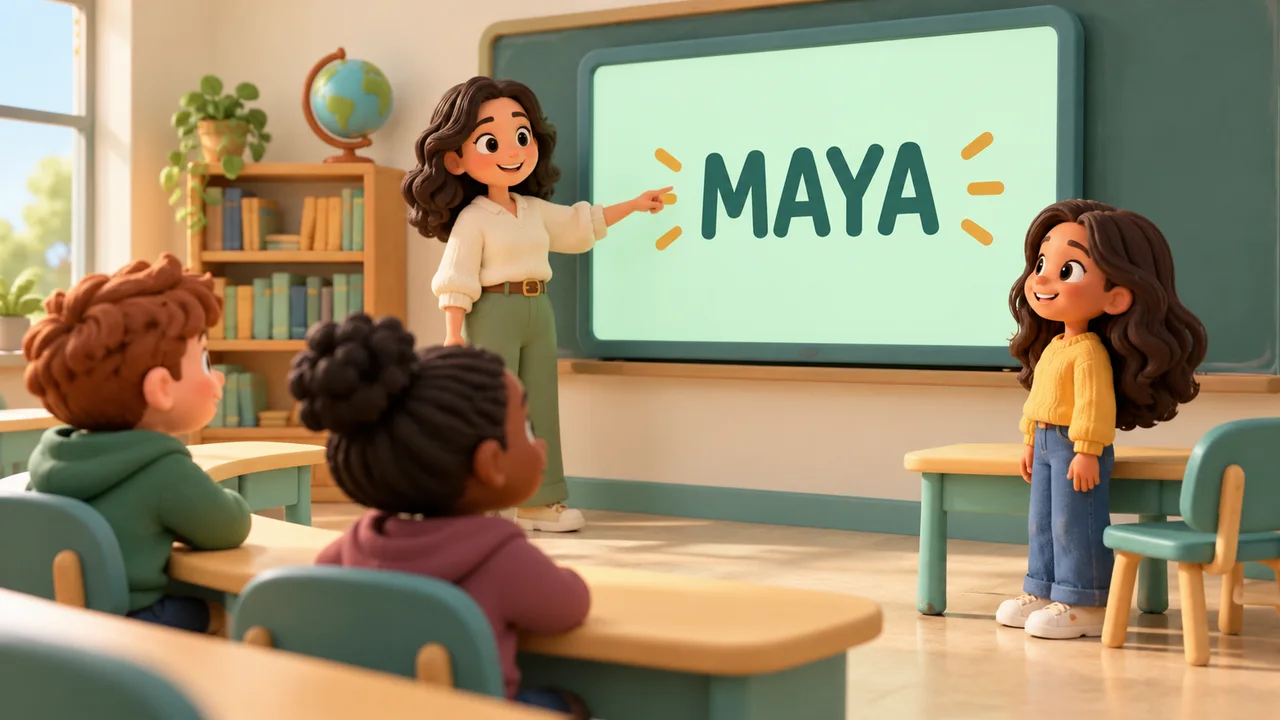
A teacher points to Maya on a classroom screen while a student stands to speak

Save the roster, reset the lesson

The reusable part is your class roster. Save up to twenty classes in this browser, then select the right class next time. Attendance exclusions and selected-student history are deliberately temporary: they are not written into local storage. Starting a new lesson clears both and makes every roster entry present again. A page reload or class switch also starts a fresh lesson. On a shared teaching computer, remove saved classes before handing the device to another person.

A teacher’s desk with class folders, a check-mark notebook and a laptop showing anonymous student avatars

How to use the classroom name picker

Check the class and participation rules before drawing.

  1. 01

    Prepare and optionally save a class

    Enter a short class name and paste one student per line. Blank lines are ignored and surrounding spaces are trimmed. You can use nicknames or classroom aliases instead of full names. Save class stores the class name and roster in this browser only. The tool supports twenty saved classes, five hundred entries per class, sixty characters per class name, and one hundred twenty characters per student label. Keep the full roster within 61,000 characters.

  2. 02

    Mark today’s exclusions

    Check the boxes beside students who are absent or sitting out. Checked entries remain in the roster but are excluded from subsequent draws. If a student arrives late, uncheck their box to let them join the remaining pool. A student who already had a turn still stays excluded by the lesson history, even if you change their attendance checkbox. Marking an absence is not an official attendance submission.

  3. 03

    Pick, present, and start the next lesson

    Choose Pick next student to reveal a name and add it to this lesson’s history. Fullscreen display enlarges the current result without showing the saved roster editor; you can continue drawing from that view. Copy the history before you reset if you need a temporary record. Start new lesson clears the turns and absence marks. Editing the roster or switching classes also clears the lesson, so finish recording any result you need first.

Made for repeat classroom use

Keep permanent lists separate from temporary lesson decisions.

Multiple saved classes

Use the class selector to open a roster saved on this browser profile. Saving is explicit, so testing a sample or typing a new roster does not silently store it. Switching classes discards unsaved edits and starts a new lesson; save a changed roster first if you want to reuse it.

No repeat within the lesson

Each roster entry can appear at most once before a lesson reset. The remaining counter excludes both absent entries and students already selected. When nobody is eligible, the tool explains why instead of recycling names automatically. A new lesson intentionally makes the whole class eligible again.

A visible sequence of turns

The history lists selections in draw order with their roster entry numbers. Matching labels remain distinct entries, rather than being silently merged. Copy preserves those numbers so you can distinguish two students with the same nickname. The history records selection, not whether a student answered, participated, or demonstrated understanding.

A five-student lesson example

The names are illustrative; your random order will differ.

  1. 01

    Start with four eligible students

    Imagine a roster containing Alex, Maya, Sam, Riley, and Jordan. If Jordan is absent, mark that entry before the first draw. The total remains five, the absent count becomes one, and four entries are eligible. With no history yet, each of those four entries has a one-in-four chance on the next draw. Jordan has no chance while marked absent.

  2. 02

    A turn changes the remaining pool

    Suppose Maya is selected. There are now three remaining candidates, and Maya appears once in history. If Jordan arrives, uncheck the absence box: Jordan joins Alex, Sam, and Riley in a four-entry pool. Maya remains excluded for this lesson. After every eligible entry has had a turn, another draw shows a clear message. Start a new lesson only when you intend to reset that rule.

Use classroom randomness thoughtfully

Selection supports a routine; the teacher still sets the activity.

  1. 01

    Discussion and reading turns

    A student selector can help distribute invitations during a short discussion or reading activity. Explain the no-repeat rule before beginning, and give students a reasonable way to pass when appropriate. Use the absence checkbox for someone who is not participating without deleting their saved roster entry. Selection order does not measure effort or ability, and the tool does not promise equal speaking time or long-term statistical fairness across different lessons.

  2. 02

    Shared devices and sensitive information

    Prefer classroom aliases and avoid entering student numbers, contact details, medical information, or other unnecessary identifiers. Saved rosters are available to anyone using the same browser profile; they are not encrypted accounts or cloud backups. Delete saved class removes the stored copy of the selected class but leaves the current working roster on screen. Clear all saved classes and current lesson removes this tool’s stored rosters and clears the working view.

  3. 03

    Choose another output when needed

    Use Random Group Generator when everyone needs a team assignment, or Random Pair Generator for partner work. Those tools distribute a whole roster rather than selecting one next speaker. Random Name Picker is a simpler choice for a one-off draw that does not need saved classes or lesson attendance. Results are not automatically transferred between tools; copy only the list you intend to use.

Classroom picker questions

Attendance, repeat rules, saved classes, and classroom privacy.

Can I pick students without repeats?

Yes. Every selected entry is excluded for the rest of the current lesson. There is no automatic restart when the pool empties. Start new lesson clears history and all absence marks. Reloading the page, editing the roster, or changing classes also starts fresh, so the no-repeat guarantee applies only to the current uninterrupted lesson.

How do I skip an absent student?

Check the student under Absent or not participating. Their name stays on the roster but cannot be selected while checked. Uncheck them if they return. A previously selected entry remains excluded even after being marked absent and present again. These exclusions are temporary and are not saved as an attendance record.

Can I save different class lists?

Yes. Name the class and choose Save class. Create another using New blank class, then save it separately. Up to twenty classes can be stored in this browser. Select a class to reuse it; save changes before switching. The lists do not sync between devices, browser profiles, or the development and public websites.

Are student names uploaded or saved automatically?

The picker processes names and draws locally. It does not send rosters or lesson history to a server. Names are saved to this browser only when you press Save class. Standard site analytics may receive page visits, as described in the privacy policy, but the picker does not attach names or draw history. Use aliases on shared devices and clear saved lists when finished.

What if two students have the same name?

Every nonempty line is a separate entry, even when labels match. Results and copied history include the entry number. Two identical lines therefore represent two chances belonging to two entries. Remove an accidental duplicate before drawing, or add a short distinguishing classroom alias when the entries represent different students.

Is each eligible student equally likely to be selected?

Each remaining entry has equal probability on that draw. The tool uses the browser cryptographic random-number generator with rejection sampling to avoid modulo bias. Removing absent and already selected entries changes the pool. This does not guarantee equal opportunities across separate lessons, especially when lessons have different attendance or end after different numbers of turns.

Why did my saved classes disappear?

Saved lists belong to this site and this browser profile. Clearing site data, using a private window, changing devices, or switching browser profiles may remove or hide them. If storage is blocked or full, the tool reports a failure rather than claiming the class was saved. Keep your original roster separately; this local convenience is not a backup system.

Can I show the selected name on a classroom screen?

Use Fullscreen display to enlarge the result panel, then connect or share that screen using your normal classroom setup. The fullscreen view includes a next-student button and a way to exit; Escape also works where the browser supports it. Fullscreen availability depends on your browser and device. If unavailable, the normal result panel remains usable.

Random Student Picker

Prepare the next classroom turn

Choose the class and check who is participating today.

Pick a student, keep the lesson history visible, and reset when the next lesson begins.

  • Free to use
  • No signup
  • Runs in your browser

A simple path to your next activity

  1. Choose the class

    Use a saved roster or paste a new one.

  2. Check attendance

    Exclude anyone sitting out today.

  3. Invite the next voice

    Draw one student without repeating this lesson.

Saved rosters stay on this browser. Lesson history is temporary.