One question set, clearly labelled versions

Exam shuffler withmatching answer keys

Create versions A through J from your own text. Shuffle questions and choices separately, check the mapped answers, and print student papers without including the teacher key.

Free · No account · Local text processing

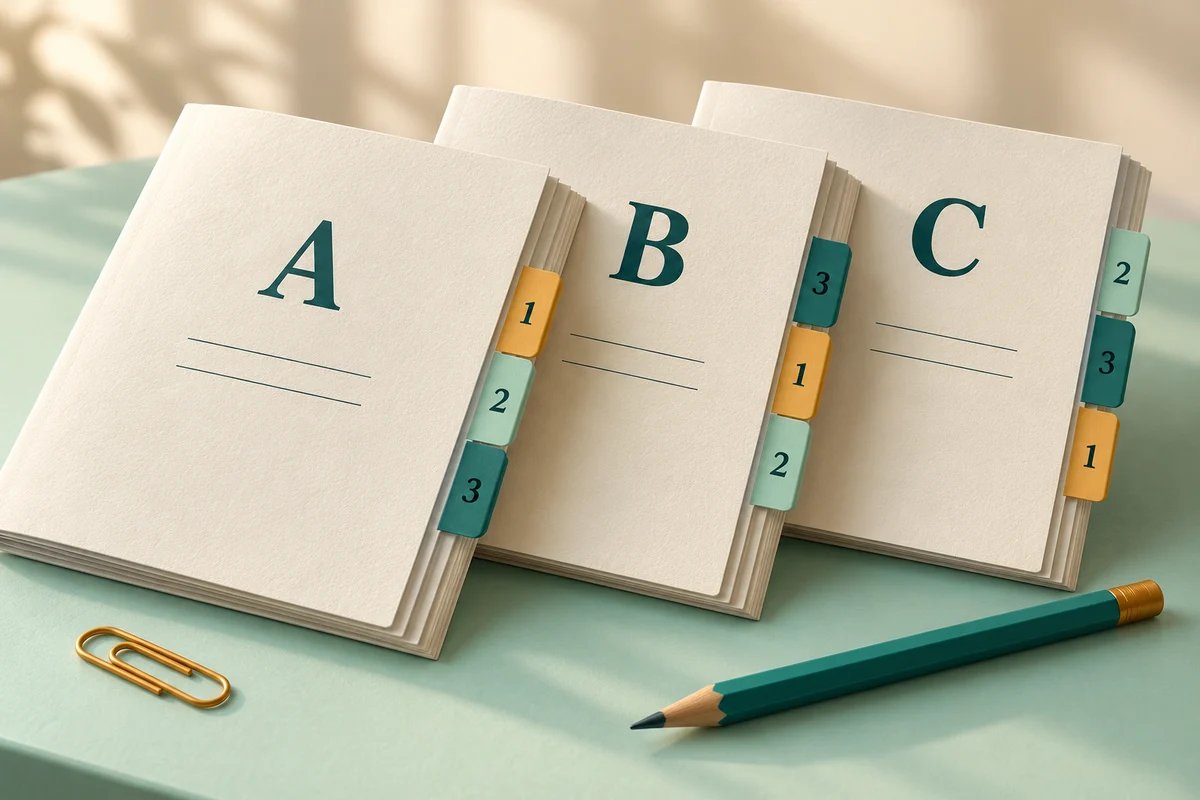
Three ivory exam booklets labelled A, B and C with differently ordered question tabs

Prepare the questions, then review every version

Start with the sample format. Separate questions with a line containing ---, and keep any answer line at the end of its question.

Test preparation

Separate questions with --- on its own line. Choices: A. through F., one per line. Put ANSWER: B (or a short reference answer) last. Remove old question numbers.

Add [keep-options] on its own line in a question to preserve its choice order. Linked questions and shared passages are not grouped automatically.

Editing settings clears generated versions and keys. Regenerating replaces the whole batch.

3 questions · 0 without an answer

Try the sample or prepare your own source.

Your student paper preview appears here after generation. Teacher answers are hidden until you reveal them.

Processed in this page. No question upload or saved account; refreshing clears your work.

Reorder the assessment without losing its meaning

Question order and choice order need different decisions.

Make several versions of the same question set

Use the exam shuffler when you already have a short quiz or worksheet and want different arrangements of that material. Every generated version contains every entered question exactly once. This is useful for classroom review, printed practice and assessments where neighbouring students should not simply follow the same sequence. It does not write new questions or select a subset from a larger bank. The wording, answer content and number of questions stay connected while the chosen ordering changes.

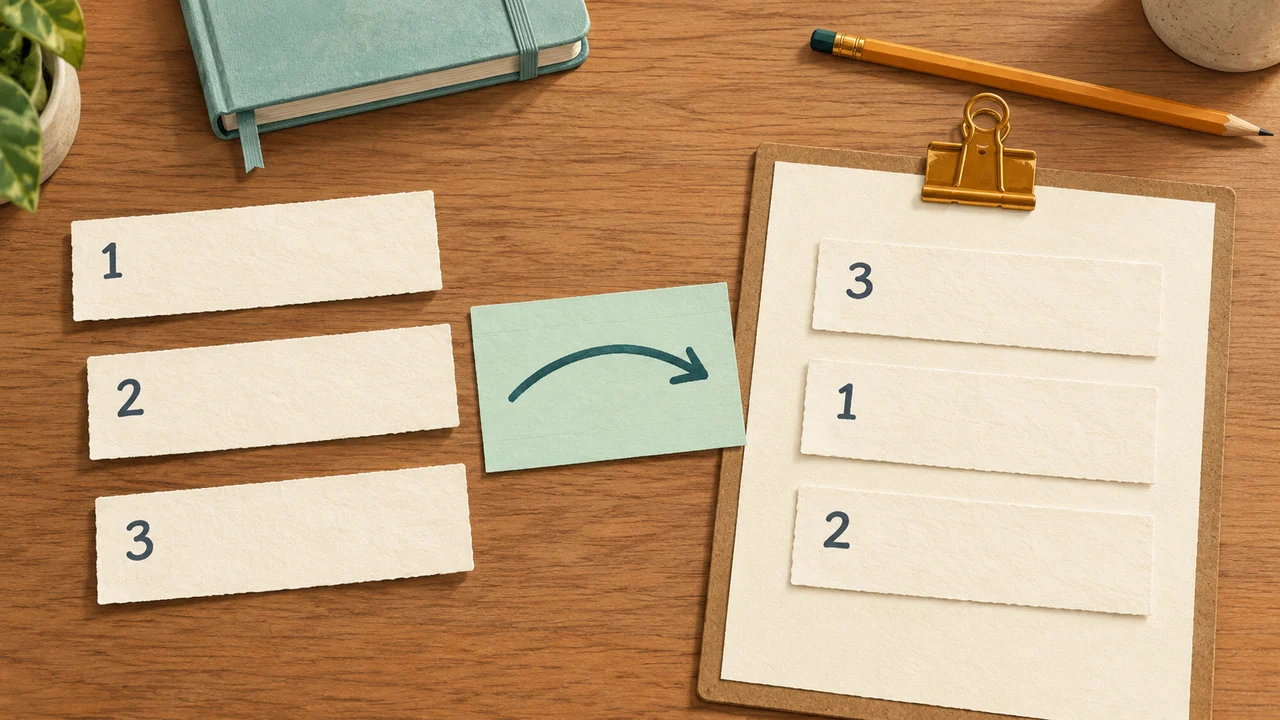
Paper question strips numbered one, two and three rearranged into a different sequence on a clipboard

Track the answer itself, not its old letter

If an original option B becomes option D, the generated key must say D. The tool keeps an internal identity for each question and option, then looks up the correct option in its new position. Teacher keys include the new question number, original source number, new answer letter and answer text. That makes spot checks easier than comparing two bare lists of letters. Review the meaning yourself: accurate mapping cannot repair a wrong answer or an ambiguous question in the source.

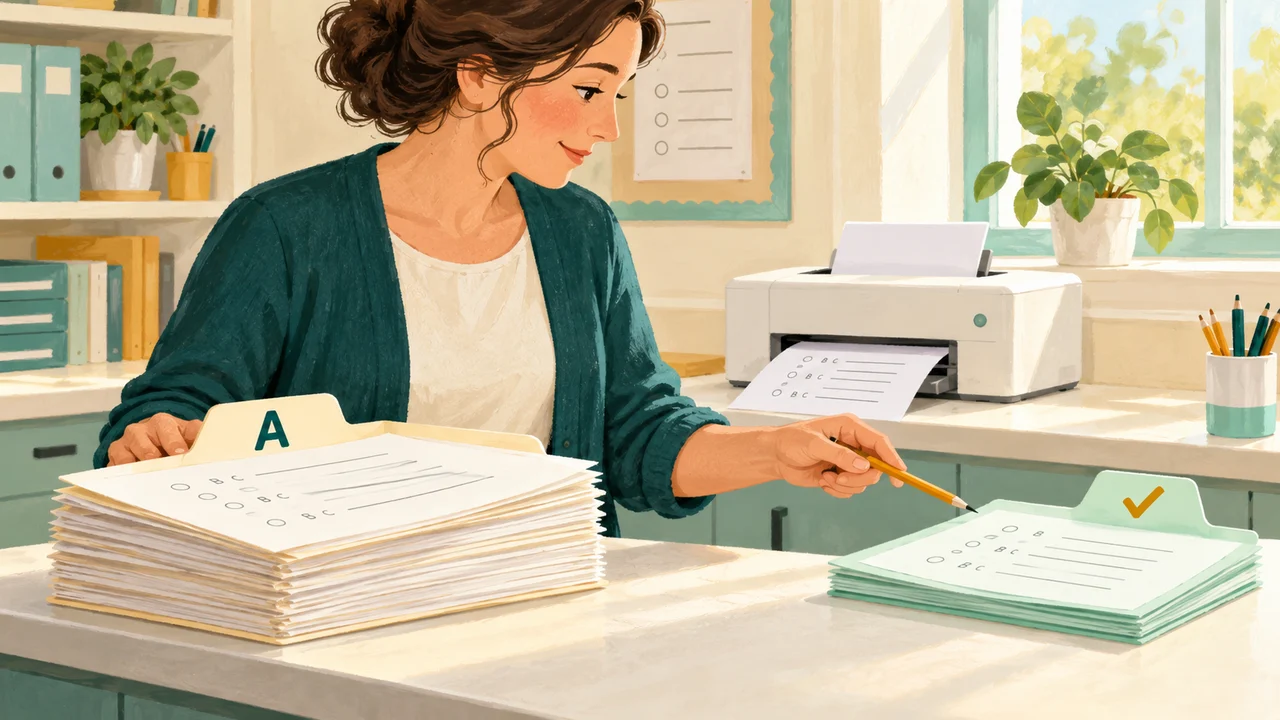
Teacher comparing two separately labelled worksheet and answer-key stacks before printing

Create a printable set in three steps

The sample is ready to run; replace it with your own material when the format is clear.

  1. 01

    Prepare a clear text source

    Paste questions without their old question numbers, placing a line of three hyphens between each question. Multiple-choice options use A. through F., one option per line and in sequence. Finish a single-answer question with ANSWER: followed by its correct letter. For an open response, omit choices and put the reference answer after ANSWER: instead. The template download shows both types. Blank lines inside a prompt are allowed, but a question boundary needs the separator.

  2. 02

    Choose how much to shuffle

    Select one to ten versions. Question shuffling starts on; option shuffling starts off. Enable option shuffling only after checking that the choices make sense in any order. Add [keep-options] on its own line in a question to preserve that question’s choice order even when the global option setting is on. If neither shuffle setting is enabled, choose one version. A small source may not have enough distinct arrangements to supply the requested number.

  3. 03

    Preview, verify and export

    Generate the batch and use the version selector to inspect each paper. Answers remain hidden until you explicitly reveal the teacher key. Print all student versions or download them as a text file; the separate teacher controls print keys or export a CSV mapping. Each printed version starts on a new page, although a long version may span several pages. Use your browser’s print preview to choose a printer or Save as PDF, and check page breaks before distribution.

Practical controls for test preparation

Keep student material and marking information distinct.

A complete batch with visible limits

The input supports up to one hundred questions and one hundred thousand characters. Prompts can contain three thousand characters, options one thousand each and reference answers two thousand. A multiple-choice item needs two to six distinct choices and one correct letter if an answer is supplied. These limits suit short quizzes and worksheets while keeping the preview manageable. Unsupported or malformed blocks are reported rather than silently dropped from the paper.

Separate student and teacher output

Student text and student print output omit the stored answer fields and internal source numbers. Revealing the key adds a teacher-only preview and export controls; it does not add answers to the student print button. The teacher CSV contains one row per question per version and preserves the mapping needed for marking. Keep that file with the exact batch you distribute. Generating another batch changes arrangements, so an old key should not be paired with newly generated papers.

Fullscreen review and editable preparation

Fullscreen uses the same result and selected version, making it useful for reviewing a practice sheet with a class. Hide teacher keys and keep the settings panel closed before presenting, because your source text can contain answers. Editing any preparation field clears the generated batch to avoid showing a stale key next to changed questions. Regeneration asks before replacing an existing batch. Refreshing the page clears your current source and results; download anything you need to keep.

Example: follow one correct choice across versions

Use a tiny source to understand the mapping before preparing a longer paper.

  1. 01

    Begin with a checkable question

    Suppose the source asks which number is even, with A. 3, B. 4 and C. 5, followed by ANSWER: B. Add a second independent question after the separator, then request two versions with both shuffle settings enabled. The correct content is the value 4, not the letter B itself. In one possible generated version the choices might read A. 5, B. 3 and C. 4, so the key for that version must point to C.

  2. 02

    Compare the source and displayed positions

    The question may also move from source position one to displayed position two. Its teacher row then identifies the current version, new question number two, source question one, new letter C and answer text 4. That combination lets you verify both kinds of rearrangement. Actual generated positions vary; the example is illustrative and does not promise a particular ordering. A question or option can legitimately remain in its original position after a shuffle.

  3. 03

    Check a short response separately

    A prompt such as Name one renewable energy source can have ANSWER: Solar energy as a reference response. Without options, the tool carries that text directly into the teacher key and leaves writing space on the student paper. It does not decide whether another response is also correct, award marks or generate a marking rubric. For open questions, prepare acceptable alternatives and grading guidance separately before using the paper for assessment.

Review the parts that randomization cannot judge

A correct permutation still needs a teacher’s review.

  1. 01

    Protect order-dependent material

    Choices such as all of the above or A and B depend on their positions. Use [keep-options] for the whole question, or leave option shuffling off. Questions that refer to the previous question or share a reading passage need similar care: this version does not group related questions or pin particular question positions. Keep question shuffling off for that material, or make each prompt self-contained. The tool does not automatically detect these dependencies from the wording.

  2. 02

    Check the paper as students will receive it

    Review the title, instructions, question numbers, line wrapping and writing space in print preview. The source is plain text: images, tables, equations with special typesetting and Word layout are not imported. Copying text from a document may require restoring option labels that were part of an automatic numbered list. For a formal assessment, test one printed copy before producing the class set. Changing question order can affect the flow or perceived difficulty even when the content is identical.

  3. 03

    Keep a dependable marking record

    Download the generated student file and teacher CSV together, using a folder that clearly identifies the lesson or assessment. Version letters are local to a batch, not permanent identifiers across later generations. The tool uses browser-provided secure randomness and checks for duplicate visible versions within the requested batch, but it does not offer seed replay or saved account history. Shuffling can make copying less convenient; it is not a guarantee of assessment security or equal difficulty.

Exam shuffler questions

Answers about input format, answer mapping and printing.

Can I paste a Word test or upload a PDF?

You can paste plain text copied from a document, or load a UTF-8 TXT file in the documented separator format. This version does not parse Word or PDF files, preserve images or import document layout. Restore any missing A. B. option labels and insert a --- line between questions before generating.

Will answers stay correct when the options move?

The key follows the original option identity and recalculates its displayed letter. It also shows the answer text and source question number for checking. This preserves the mapping you entered; it does not verify subject knowledge, detect an incorrect original key or rewrite position-dependent wording.

How do I stop all of the above from being moved?

Add [keep-options] on its own line inside that question. Its entire option order will remain fixed even with global option shuffling enabled. The question itself can still move if question shuffling is on. There is no automatic detection of all-of-the-above wording or linked passages.

Can I mix multiple-choice and short-answer questions?

Yes. Multiple-choice questions use two to six choices and at most one correct answer letter. A question without choices is treated as an open response with an optional one-line reference answer. Multiple-answer selection, automatic marking, section grouping and passage protection are not supported.

Why can I not generate all the versions I requested?

The requested batch needs distinct visible arrangements. Two questions with fixed choices provide only two question orders; one fixed question provides only one. Reduce the count or allow another valid shuffle. Identical question blocks and duplicate option text are rejected. If retries cannot complete a distinct batch, the tool reports a failure rather than delivering fewer versions.

Do student printouts include the answer key?

No. The student print and text-download buttons omit stored answers. Teacher keys are revealed and printed or exported separately. However, anything you typed directly into the question or instructions remains student-facing, so remove embedded answer explanations from those fields before distributing papers.

Can I save the papers as PDF and keep the keys for marking?

Use Print student versions, then choose Save as PDF in a browser or operating system that supports it. All versions are included, with a new page at each version boundary. Reveal the teacher key to print it separately or download the CSV containing each version’s question and answer mapping.

Are my questions saved or sent to a server?

Question parsing, shuffling and output creation run in the current browser page without an account. This tool does not upload your question text or store it in a cloud library. Reloading or leaving clears the working state. Save your source and generated outputs locally if you need them later.

Exam shuffler with

Turn one prepared quiz into a checked set of versions

Keep the questions you trust, choose the permitted rearrangements and verify the matching keys.

  • Free to use
  • No signup
  • Runs in your browser

A simple path to your next activity

  1. Prepare the text

    Use clear separators and answer labels.

  2. Choose the shuffle

    Protect choices that depend on their order.

  3. Review and print

    Keep student papers and teacher keys separate.

Review one student paper and its matching key before distribution.