A clear pace for shared activities

Classroom timer forfocused, visible rounds

Give everyone a readable countdown. Run one activity or repeat the same activity and transition times, with pause, skip and optional sound when a phase changes.

Free to use · No account · Works in your browser

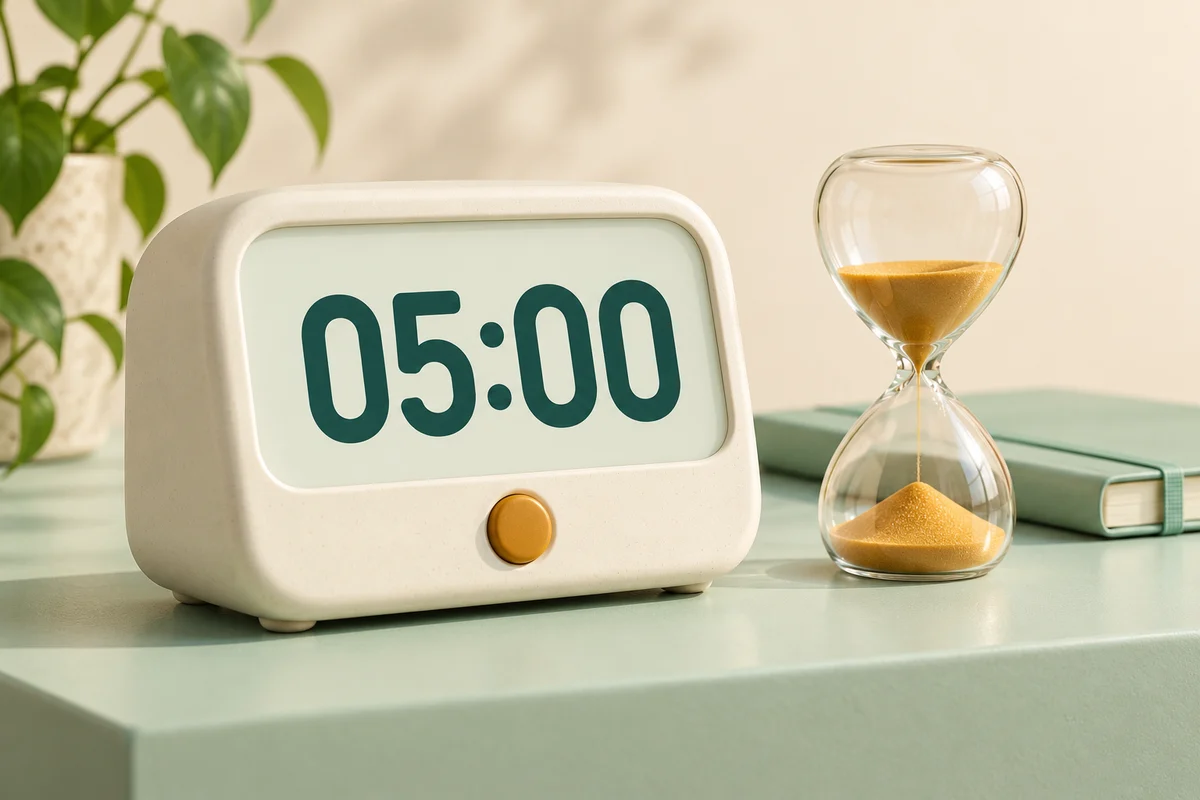
Ivory digital timer showing 05:00 beside an amber-sand hourglass and a mint exercise book

Set the time, then give the room a clear view

Choose a single countdown or repeated rounds. Review the total duration before starting, and open fullscreen when you are ready to present.

Timer settings

1 second to 180 minutes per activity. Enter whole numbers; seconds range from 0 to 59.

Maximum 50 rounds and 24 hours in total. Review the planned sequence before starting.

Ready to start

Focus time

Round 1 of 1 · Activity

05:00

Total time remaining: 05:00

Review the plan, then start when the room is ready.

Enabling or testing sound plays a short cue. Automatic cues also play on start, resume, skip and completion. Keep this page visible; background or sleeping devices may delay sound.

Planned sequence · 05:00

Original plan, not a record of time spent. Skipping advances schedule progress. No transition follows the final activity.

  1. 1. Focus time05:00

Runs in this page without an account. Refreshing or closing it clears the session; it does not prevent device sleep.

Keep a shared activity moving

A visible time boundary helps people plan their next step without repeated verbal reminders.

Make the remaining time easy to see

Use a single countdown for a starter question, independent reading, a short presentation or a quiet writing task. Name the activity so the large display explains what students are working on. Before starting, read the instructions aloud and make sure everyone can see the screen. A timer gives the room a shared reference, but it should not replace a clear task or a reasonable adjustment for someone who needs more time. Choose a duration that fits the work, and pause if the class needs an explanation.

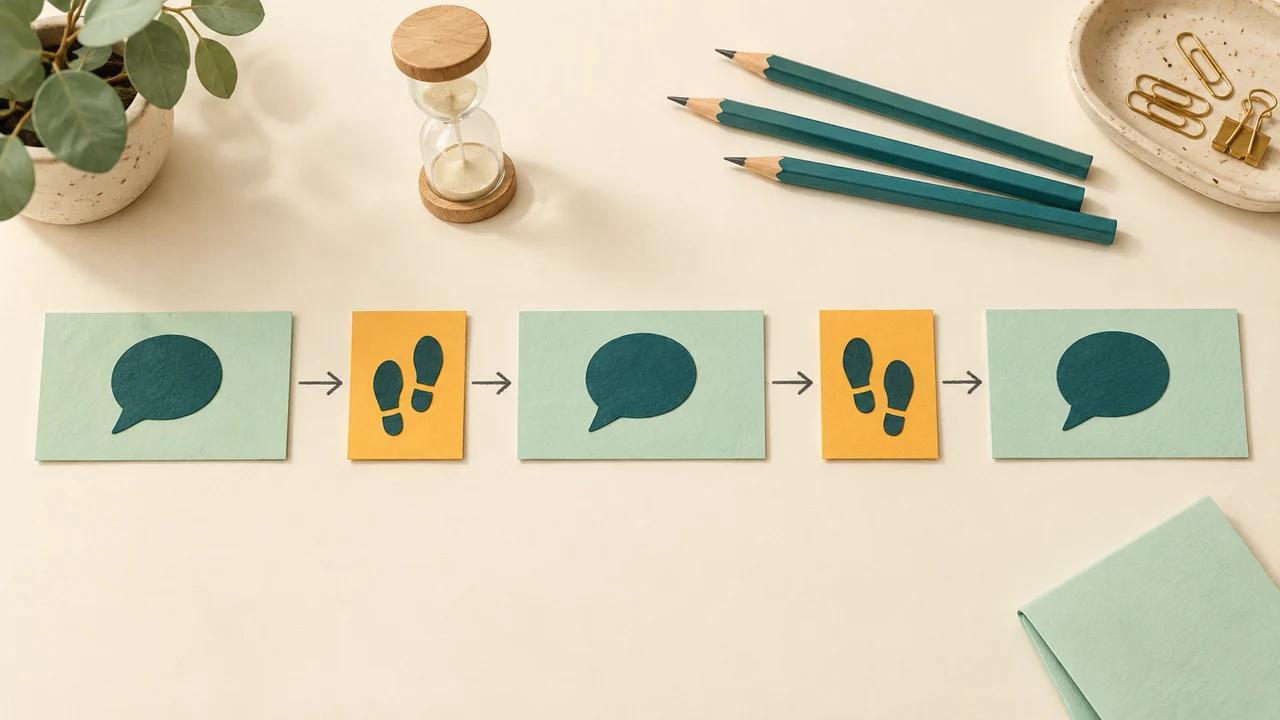
Overhead lesson planning board with three mint activity blocks separated by two short amber transition blocks

Repeat rounds without restarting by hand

Set one activity duration, an optional transition duration and a number of rounds. The sequence advances automatically from activity to transition and into the next round. This is useful for paired speaking turns, station practice or short discussion cycles that need equal time. The final activity ends the sequence; there is no extra transition after it. Keep the instructions for each station elsewhere, because the repeating schedule uses the same two labels and durations throughout rather than a different custom lesson plan for every stage.

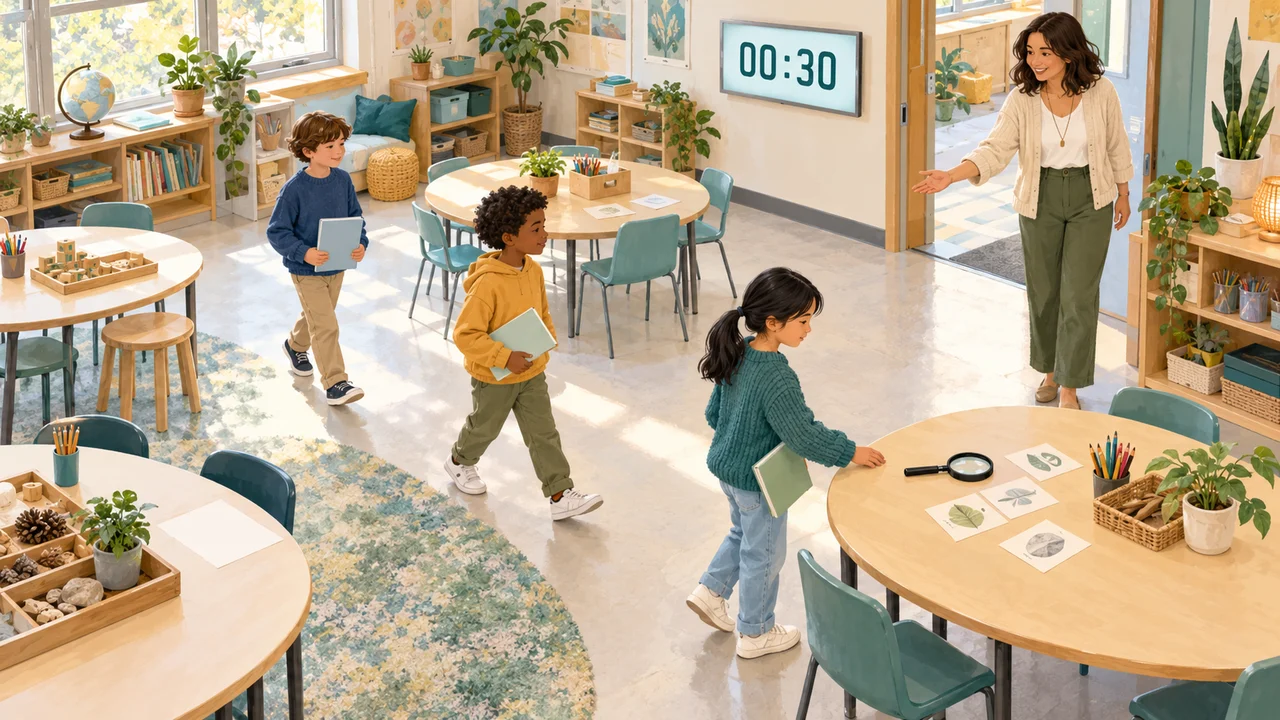
Students moving between classroom activity stations while a wall display shows a short transition countdown

Start a session in three steps

A little preparation makes the display easier to use once the activity begins.

  1. 01

    Choose the format and durations

    Select a single countdown for one task, or repeating rounds for an activity followed by a transition. Enter whole minutes and seconds, then give each phase a short label. Activity time can be between one second and three hours. Transitions can be zero to one hour, and a repeated schedule can contain one to fifty rounds. The complete planned session must fit within twenty-four hours. Use a preset as a starting point, then change the fields to suit your lesson.

  2. 02

    Review the schedule and sound

    Open the planned sequence to check the order and total duration. A zero-second transition is left out entirely. Sound starts off; enable it only if a short cue will help your room, and use Test sound to check the actual speakers. Testing plays a cue even while automatic sound is off. Browser permission, device volume and the output selected on your computer all affect what the audience hears, so do this before students begin.

  3. 03

    Start, present and adjust deliberately

    Press Start timer, then use the shared fullscreen control for a larger view. Settings stay locked while the session is running or paused so an accidental edit cannot silently change a round. Pause to explain something, resume to continue, or skip the current phase if the room is ready early. Reset ends the current session and returns to the settings; it asks for confirmation while a session is active. Closing fullscreen simply returns to the page and keeps the session running.

Controls that fit a live room

Keep the essentials close to the countdown, including when you are presenting.

Readable phase and round information

The display shows the activity label, current round, activity or transition status, phase time remaining and total schedule time remaining. The progress bar represents how far the schedule has advanced. Skipping a phase moves this progress forward, so it is not a record of how many minutes learners actually worked. Long labels wrap instead of pushing the numbers sideways; short, concrete names are still the easiest to read from a distance.

Pause without losing the remaining time

Pausing freezes the remaining duration. Resuming continues from that point rather than starting the phase again, and time spent paused does not count against the schedule. You can also skip a phase while paused; the following phase will remain paused until you resume. These controls help when equipment needs attention or a question deserves a proper answer. Use Reset when you want to change the duration or start a completely new activity.

Optional cues and a quiet visual mode

A short tone can accompany start, resume, phase changes, skipping and completion. The visual countdown and completion message work with sound turned off. The timer announces phase changes to assistive technology without announcing every second. Audio is a convenience, not a guaranteed alarm: a suspended browser or sleeping device may delay a cue. Keep the active display visible during a lesson and confirm the room can hear the test tone if you intend to rely on sound.

Example: three discussion rounds in fourteen minutes

The total includes transitions between rounds, with no spare transition at the end.

  1. 01

    Plan four minutes of discussion

    Choose repeating rounds, enter four minutes for the activity and set the activity label to Discuss your evidence. Set a one-minute transition labelled Move and prepare, then choose three rounds. The planned sequence reads activity, transition, activity, transition, activity. Its total is fourteen minutes: three lots of four minutes plus two one-minute transitions. Check this total before fitting the activity into a larger lesson.

  2. 02

    Use the transition for a specific action

    At the first boundary the display switches to the transition label, and the next activity starts automatically after one minute. Tell students whether the transition means moving to another table, exchanging materials or changing speaker. A timer cannot assign those roles for you. For a classroom with fixed seats, a transition can simply be quiet thinking time before the next response. If no gap is useful, set both transition fields to zero before starting.

  3. 03

    Finish with a short review

    After the third discussion, the display reaches zero and shows that the session is complete. It does not begin a fourth round or count an unnecessary final rest. Use the remaining lesson time to collect an observation from each table. Restart repeats the same planned session from the beginning. If you want a different closing task, change the fields or choose the single-countdown preset after the session has finished.

Make the timer useful, not distracting

Match the timing and display to the people in front of you.

  1. 01

    Set expectations before starting

    Explain what a successful response looks like and what should happen when the number reaches zero. For younger learners, rehearse a short transition before running several rounds. For presentations, agree on whether the cue means stop immediately or finish the current sentence. Avoid using a very short limit to rush a task that requires careful reading. The pause control is there to support good judgment, not to make everyone work at exactly the same speed.

  2. 02

    Prepare the screen and the room

    Use a projector, connected display or your normal screen-sharing setup. Fullscreen enlarges the tool on the current device; it does not create a remotely controlled screen or send the timer to another phone. Check readability from the back of the room, and avoid covering the display with another window. The page does not prevent a device from sleeping. If the machine sleeps or the browser suspends the tab, return to the page and confirm the current phase before continuing.

  3. 03

    Understand what remains after a session

    This tool keeps its settings and current session in page memory. Reloading, closing the tab or switching to a separate language page starts a fresh timer; there is no saved session to restore. No account, cloud synchronization or attendance record is created. The planned sequence is a preview rather than a downloadable record of actual work. If you need to evaluate how an activity went, make a separate note of interruptions, early finishes and the changes you want to try next time.

Classroom timer questions

Practical answers about repeated rounds, sound and presenting.

Can I use this as a simple countdown as well as an interval timer?

Yes. Single countdown runs one labelled activity. Repeating rounds uses one shared activity duration and one optional transition duration across one to fifty rounds. Each activity can last up to three hours; the complete schedule is limited to twenty-four hours. This version does not build a sequence of unrelated stages with a different duration for every stage.

How is the total time calculated, and is there a final rest?

The total is activity time multiplied by the number of rounds, plus transition time multiplied by one fewer than the number of rounds. Three four-minute activities with one-minute transitions take fourteen minutes. There is no transition after the final activity. A zero-second transition is omitted, so the next activity begins immediately.

What is the difference between pause, skip and reset?

Pause freezes the remaining time; resume continues from that point. Skip discards the remainder of the current phase and moves to the next, preserving a paused state if you were paused. Skipping the final phase completes the session. Reset clears the session and unlocks the fields while keeping your chosen settings ready to edit.

Why can I not hear the timer sound?

Sound is off by default. Enable the sound option and press Test sound, then check browser permissions, muted tabs, system volume and the selected speakers. Testing makes a sound without enabling automatic cues. Some browsers restrict audio until a person interacts with the page, and suspended tabs or sleeping devices can delay it. The visual completion message remains available.

Does the timer keep the correct time in a background tab?

Remaining time is calculated from timestamps rather than by subtracting one second per callback. When the browser allows the page to run again, it catches up to the relevant phase or completion. This does not guarantee a timely sound while the tab is suspended or the device is asleep. Changes to the computer clock can also affect timing. Keep the page visible for a live classroom session.

Can I show the countdown in fullscreen on a classroom display?

Yes. Use the tool’s fullscreen control and your normal projector or screen-sharing connection. The controls and timer stay together, and leaving fullscreen does not reset the session. The shared primary action starts or resumes the timer and is disabled while it runs; use Pause beside the display when needed. Another device does not automatically receive or control this session.

Can I change the duration after a round has started?

Duration fields and presets are locked while running or paused. You can pause, resume, skip, change the sound option or leave fullscreen without rebuilding the schedule. To change durations or labels, reset the session first. A confirmation protects an active session from an accidental reset; after completion, you can edit the next session directly.

Will my timer resume after I refresh or close the page?

No. This version stores the setup and live countdown only in the current page’s memory. Refreshing, closing the tab or opening the other language version starts fresh. Keep the page open through the activity. No personal information or timing log is uploaded, and no account is required.

Classroom timer for

Give the next activity a clear time boundary

Choose a duration the room can use, review the rounds, then make the remaining time visible.

  • Free to use
  • No signup
  • Runs in your browser

A simple path to your next activity

  1. Choose the activity time

    Set a clear label and a realistic duration.

  2. Review rounds and transitions

    Check total time and the optional gaps.

  3. Start and open fullscreen

    Present the countdown and keep controls nearby.

Start quietly, test sound if needed, and adjust the pace with pause.