Try the three original sample pictures or clear them and add your own images.
Image Picker Wheel
Press Esc or use the exit button to return.
Custom files are processed in this tab without image uploads or persistent storage by this tool. Keep original files; refresh clears the custom pool.
Keep the choice visual
Every uploaded picture is an actual selectable option.
A wheel with pictures, not just a decorative background
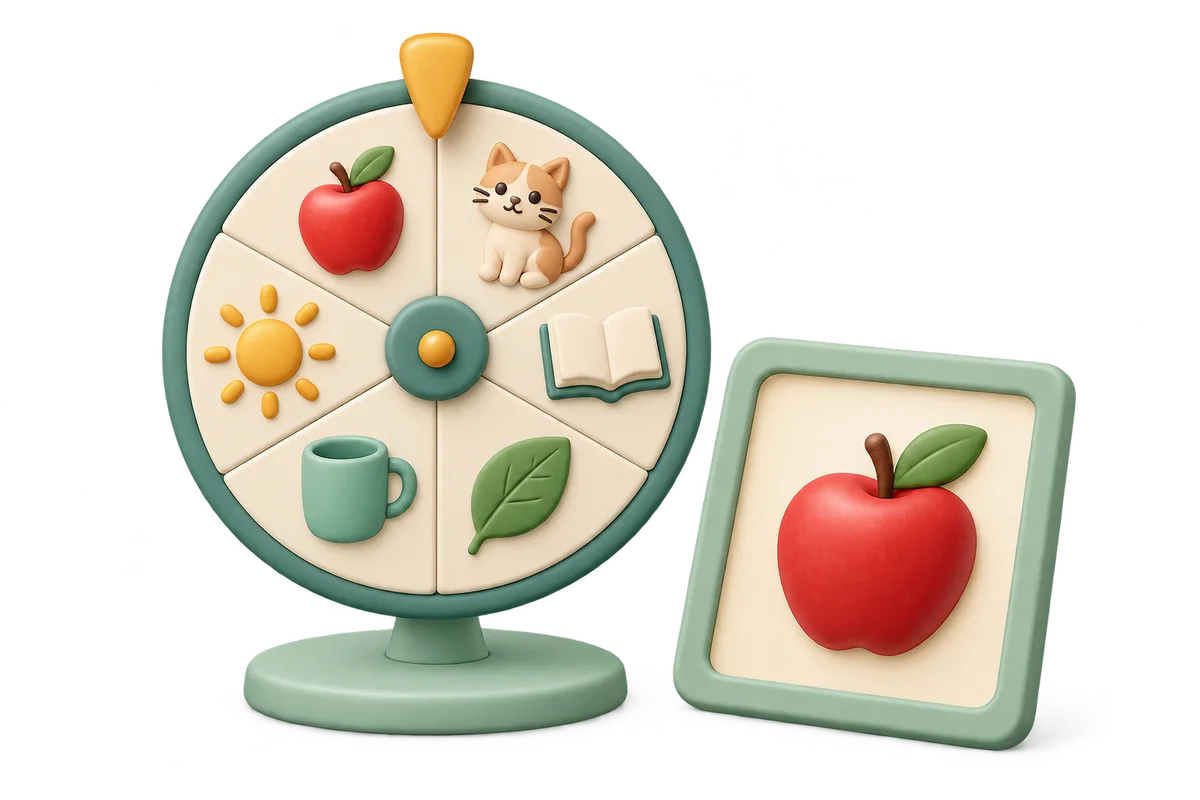
An image picker wheel is useful when the options are easiest to recognize by sight: classroom object cards, activity photos, design alternatives or pictures of items you already have. Each added image becomes a separate entry with a thumbnail on an equal-sized wheel sector. The chosen entry then appears in a larger result area. This is different from placing a single logo behind a text wheel. You can rename entries for clarity, but the picture remains attached to its original ID throughout the draw.
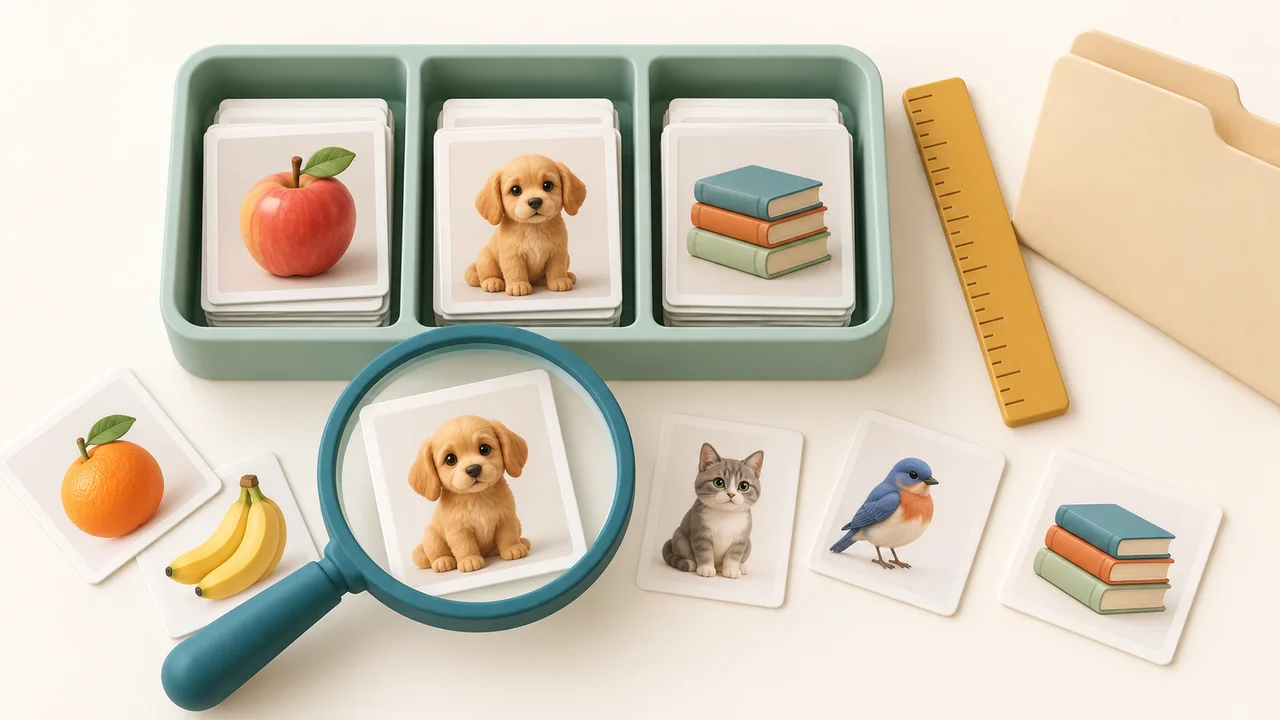
Prepare a small set of recognizable pictures and inspect the preview list before spinning. The tool checks file size, supported raster format and image dimensions before decoding, then makes a local preview whose longest side is at most seven hundred sixty-eight pixels. That keeps large camera photos from accumulating as full-size decoded images in the wheel. The result uses this same preview, preserving its aspect ratio. It is an enlarged viewing area, not an original-resolution image editor or a way to recover detail lost during resizing.
Use the image file chooser to select several JPEG, PNG or WebP files. The wheel supports up to twenty-four entries, including sample pictures. Each file must be no larger than four MiB, and the original sizes of all custom entries must total no more than forty-eight MiB. A picture must fit within four thousand ninety-six pixels on each side and twelve million pixels in total. Animated PNG and WebP are rejected, along with GIF, SVG, HEIC and unsupported formats. Convert unsupported photos to a static supported format first.
02
Review labels and decide whether pictures can repeat
The preview list shows every entry, its number and whether it has been selected this round. Uploaded filenames become editable labels of up to one hundred twenty characters. Matching filenames and identical pictures remain separate entries: remove unintended duplicates yourself. With Remove selected pictures from this round enabled, each selected ID becomes unavailable until you reset. With it disabled, all entries remain eligible after every spin. Changing that setting or editing the pool resets the current round so old exclusions do not silently carry into a new setup.
03
Spin and read the enlarged result
Press Spin pictures. The tool selects an eligible entry with secure browser randomness before animating the wheel to that sector. The animation shows the choice rather than determining it from click timing. Upload and editing controls are locked during the spin so the visible wheel and result use the same pool. Reduced-motion preferences reveal the result immediately. The selected picture is enlarged below the wheel, and Copy selected label copies its text and entry ID. It does not copy image pixels or send a picture to another application.
Practical limits for local image drawing
A small visual pool works better than unreadable slices.
Equal chances for available entries
Every currently eligible entry has the same chance on each draw, independent of file size, picture dimensions or label length. In no-repeat mode, the next draw uses only the remaining IDs, so the denominator changes as images leave the pool. Two copies of the same picture count as two chances. A pool with one eligible image always selects that image; an empty or exhausted pool cannot spin. There are no weights or image-content rankings on this page, and visual appeal does not influence the random choice.
A complete upload batch or no new entries
Files are prepared one at a time to reduce simultaneous decoding work. If any file fails validation or decoding, that upload batch is rejected and your existing pool stays intact. Cancel preparation also leaves the earlier pool in place. Temporary local previews from an unsuccessful or cancelled batch are released. Successful uploads reset the round and add all validated entries together. If the total entry or byte limit would be exceeded, delete existing entries first or choose a smaller batch. A misleading filename extension does not bypass the actual-format check.
Local previews with an explicit lifetime
The browser creates local object URLs for normalized custom previews; these are released when the corresponding entries are deleted, when the sample replaces the pool, when everything is cleared, or when the component closes. Selecting a picture without replacement only marks it excluded, so reset can restore it without another upload. This tool does not upload your picture files, save them in persistent tool storage, create a shareable image gallery or synchronize them across devices. Keep your original files because refreshing the page discards this custom pool.
Example: an apple, a cat and a book
The sample artwork demonstrates picture entries without using personal photos.
01
Run a three-picture identification round
Open the sample with Apple, Cat and Book and keep removal enabled. All three images initially have a one-in-three chance. Spin and ask participants to identify or describe the selected object. The result shows the larger picture and its entry number. Spin again to choose between the two remaining pictures, then once more for the final picture. Across those three spins each sample ID appears once, although its position in the sequence varies. The completed wheel stays visible as the last draw snapshot until you reset or draw again.
02
Try replacement or build a custom pool
Reset restores the three available entries. Disable removal if you want independent spins where the same picture can appear again immediately. To use your own material, clear the sample first and upload a few static image files. Check their previews, rename ambiguous filenames, and start the round. Deleting one entry starts a fresh round for the remaining pool; it does not preserve the earlier exclusion history. This makes an edited collection a clearly new activity rather than quietly combining two different draw setups.
Prepare images that people can recognize
The tool chooses a picture; the activity around it stays yours.
01
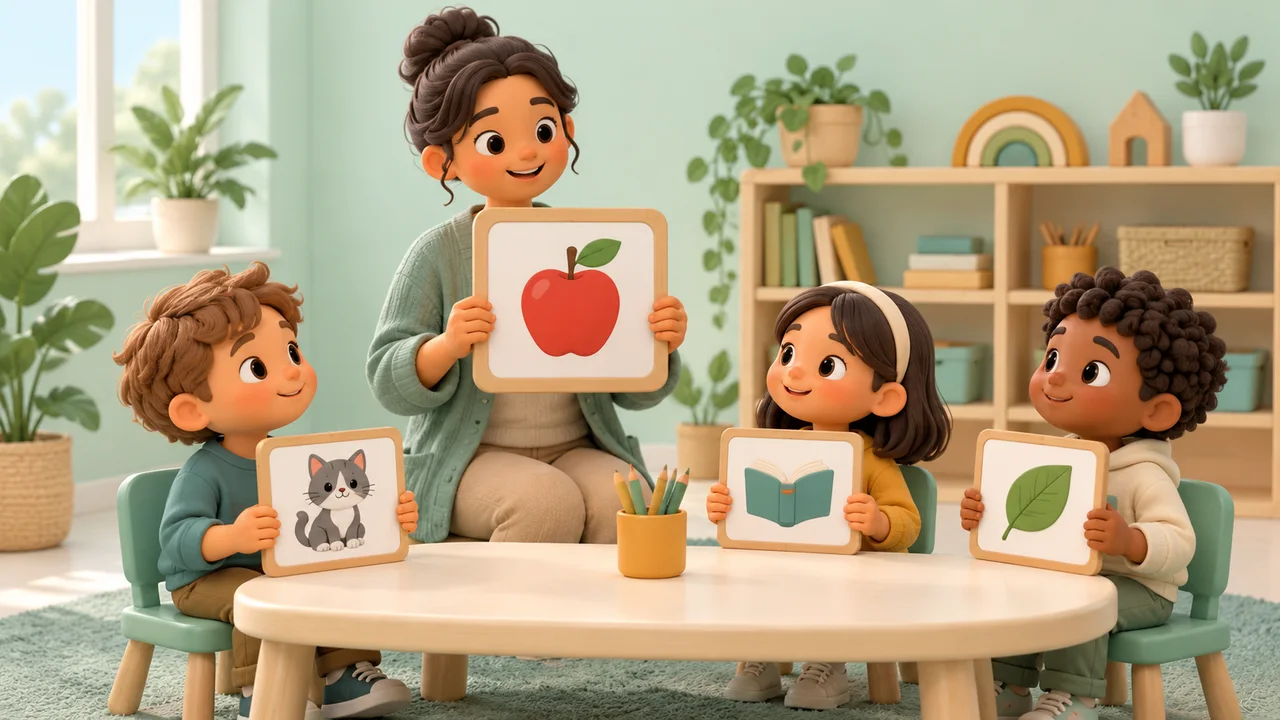
Use focused classroom picture prompts
For object naming or language practice, prefer one recognizable subject per picture, a simple background and a useful spoken description. Twenty-four entries are supported, but fewer choices make wheel thumbnails easier to recognize. The larger result is useful for looking closely after the spin. Keep a meaningful label for each entry so someone using assistive technology can identify the result without relying entirely on the image. This tool does not analyze a picture, generate an automatic caption or judge a learner’s answer.
02
Resolve rejected uploads before a live session
A small file can still declare enormous dimensions, so both compressed bytes and pixel dimensions are checked. Corrupt data, unsupported formats and animation can also cause rejection. Resave the source as a static JPEG, PNG or WebP, resize it within the stated limits, then retry. Smartphone photos may arrive as HEIC; renaming the extension does not convert them. The preview is for visual selection, and the tool does not offer cropping, retouching, video capture or export of a high-resolution original.
03
Choose the tool that matches the next step
Use the text wheel when your choices are names or short phrases. Use the question picker when prompts need answers and completion status. This image wheel manages picture entries and a current result, not a permanent draw history or prize inventory. If the pictures represent real people or private material, share your screen and copied labels only with the intended audience. Local processing keeps the selected files out of this tool’s upload flow, but does not make a projected picture invisible to other people in the room.
Image wheel questions
Upload limits, repeat behavior and local previews.
Can I upload my own pictures as wheel options?
Yes. Select multiple static JPEG, PNG or WebP files with the image chooser. Each file becomes an independent thumbnail sector and can appear as the enlarged result. Clear the sample first if you want only your own pictures. This is actual image selection, not a background-logo setting.
Which image types and sizes are accepted?
Use static JPEG, PNG or WebP, up to 4 MiB each, 4096 pixels per side and 12 million pixels overall. The pool supports 24 entries and 48 MiB of original custom-file sizes. GIF, SVG, HEIC and animated PNG/WebP are rejected. Changing an extension does not change the underlying format.
Are my photos uploaded or saved on a server?
The tool reads selected files locally and creates resized browser previews without uploading the picture data. It does not save the pool persistently or sync devices. Refreshing or leaving discards your custom pool. Original files stay on your device and are not altered by the wheel.
Can I prevent the same picture from winning twice?
Enable removal to exclude the selected entry ID from later spins in the current round. Reset restores the pool. Identical pictures uploaded twice are separate entries and can both be selected, so remove unintended duplicates. Disabling removal allows immediate repeats on independent spins.
Why does the large result look smaller than my original photo?
Custom previews are resized to a maximum long edge of 768 pixels to bound browser memory. The result enlarges the viewing area while preserving that preview’s aspect ratio. It does not promise original resolution or edit your original file. Use the original separately if you need printing or detailed image work.
What happens if one file in a batch is invalid?
The complete batch is rejected, newly prepared temporary previews are released and the previous pool is retained. Cancel preparation has the same preservation behavior. Check file type, dimensions and size, then retry a corrected batch. Successful uploads add the whole batch and reset the round.
Does deleting or renaming an image keep earlier exclusions?
No. Editing labels, deleting an entry, adding a successful upload batch or changing repeat mode starts a fresh round and clears the current result. Reset round keeps the images but restores all eligible entries. Clear images removes the custom previews as well as the round state.
Can I copy the winning picture or share this wheel with its images?
Copy selected label copies the text label and entry ID only. It does not copy image pixels, create a shared gallery or attach local files to a page link. The picture remains visible in the current result. Keep the originals if you want to rebuild the same image pool on another device.