A clear place for every student

Random Seating Chart GeneratorSet the room. Keep the rules.

Turn a student list into a rectangular classroom plan with fixed seats, unused desks and strict keep-apart rules.

Rows and columns · Locked seats · Printable classroom grid

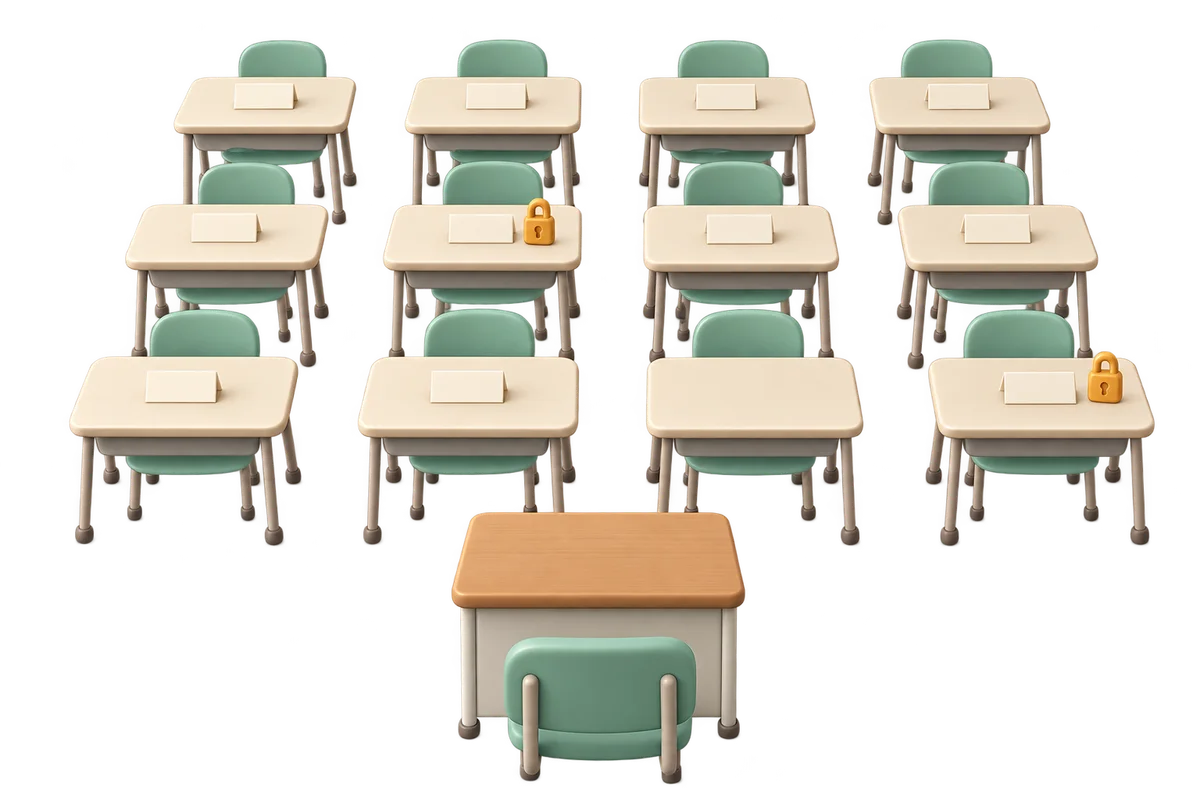
Ivory classroom desks in orderly rows with mint chairs, blank name tents, amber locks and a teacher desk

Match the grid to your classroom

Set the room, check entry IDs, then add any fixed seats or keep-apart pairs. Row 1 is nearest the board.

Students and room rules

One student per line. Up to 60 students, 120 characters per name and 10,000 input characters. Matching names keep separate entry IDs. Editing the roster clears fixed-seat and keep-apart rules.

UTF-8 TXT, up to 40,000 bytes. Import replaces the roster and clears identity-based rules and old results.

Student entry IDs (8)
  1. Entry 1: Alex
  2. Entry 2: Blair
  3. Entry 3: Casey
  4. Entry 4: Devon
  5. Entry 5: Emery
  6. Entry 6: Frankie
  7. Entry 7: Gray
  8. Entry 8: Harper

One row,column per line. Example: 4,4 blocks the back-right desk of a 4 × 4 grid.

One entry ID,row,column per line. Example: 2,1,3 locks entry 2 to front row, column 3.

One entry ID,entry ID per line. Example: 1,2 keeps entries 1 and 2 apart. Diagonals are allowed.

1–10 rows and 1–10 columns; up to 100 physical cells and 60 students. Row 1 is nearest the board; column 1 is on your left looking toward it.

All successful charts satisfy every rule. Adjacent means directly left, right, front or back. Unused available desks may be anywhere. No history or automatic front/back preferences.

Eight-student sample ready in a four-row, four-column room.

Classroom seating chart

Generate to see every desk, student, empty seat and unavailable position.

Names, rules and charts stay in this page and its local worker. Nothing is uploaded or saved. Copy, download or print before refreshing.

A classroom plan you can actually use

Start with the physical room, then add the student rules.

Rows, columns, and genuinely unused desks

A random seating chart generator should describe the room students will enter. Rows run from the front toward the back; columns run left to right when looking toward the board. This page keeps that orientation on screen, in copied text, and in print. Mark a broken desk or a walkway cell unavailable before you generate. If usable desks outnumber students, the remaining cells are labeled Empty seat. Empty seats can appear anywhere among unlocked positions; they are not automatically pushed to the back.

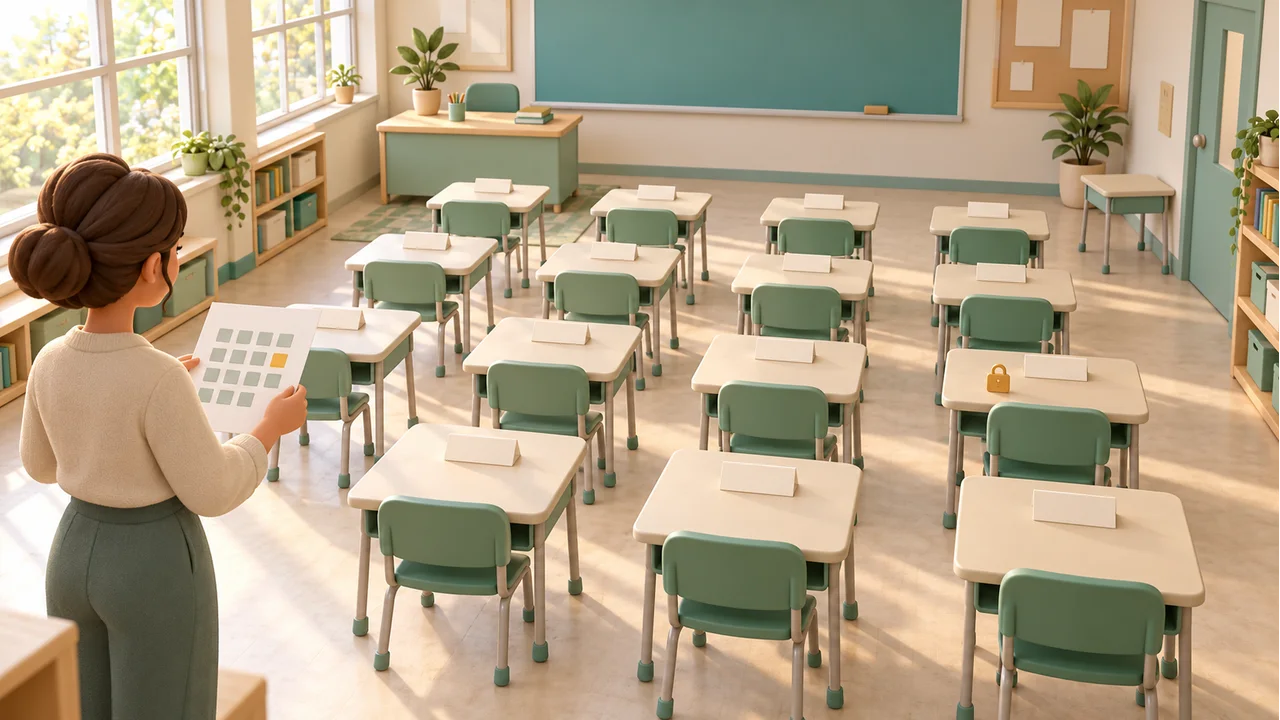
A teacher checks a paper seating grid beside rows of individual classroom desks and a blank teal board

Keep essential placements while shuffling the rest

Lock a student to an exact row and column when their placement needs to stay fixed. Use the numbered entry list to identify students, including two people who share a name. Keep-apart rules prevent selected students from being directly beside, ahead of, or behind each other. A successful chart satisfies every supplied rule. If the fixed seats already contradict a keep-apart pair, the tool explains the conflict instead of displaying a nearly correct chart that could be mistaken for an approved plan.

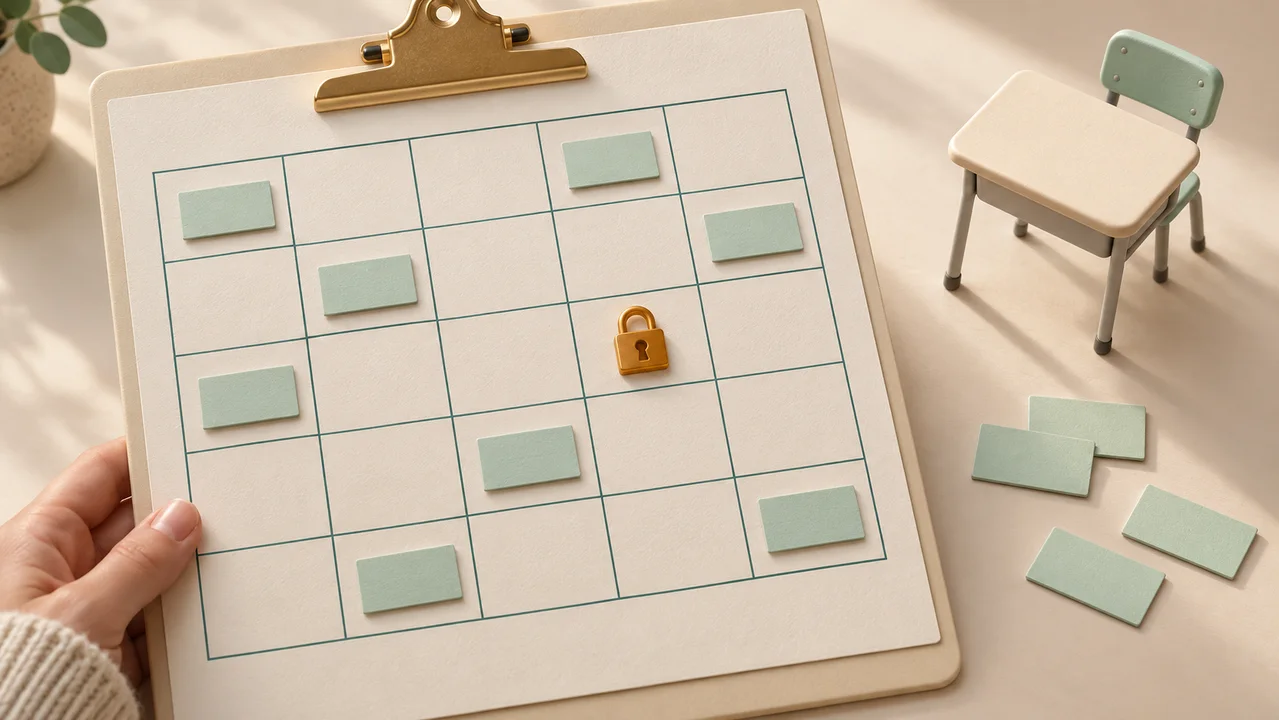
A printed classroom grid on a clipboard beside an amber padlock, spare name cards and a miniature mint chair

How to make a random classroom seating chart

Check the roster and orientation before publishing the result.

  1. 01

    Paste the roster and confirm entry numbers

    Enter one student per line or import a UTF-8 TXT roster. Blank lines are ignored. The supported limit is sixty students, one hundred twenty characters per name, and ten thousand input characters. Identical names remain separate entries rather than being merged. Expand Student entry IDs to see the exact number assigned to each row. Editing or importing the roster clears fixed-seat and keep-apart rules so an old ID cannot silently start referring to a different student. Unavailable room cells remain in place.

  2. 02

    Define the room and add only necessary rules

    Choose one to ten rows and one to ten columns. In Unavailable seats, enter row,column, one cell per line; 4,4 removes the back-right desk of a four-by-four grid. In Fixed student seats, enter entry ID,row,column; 2,1,3 fixes entry two to the third desk of the front row. In Students who must not be adjacent, enter two entry IDs separated by a comma. The rules accept ordinary or Chinese commas. Coordinates and IDs always start at one.

  3. 03

    Generate, review, and keep a complete record

    Generate a chart and inspect its front-of-room label, coordinates, student IDs, and locked labels. A wide chart scrolls inside the result area on a phone. Copy includes every seat as readable text; CSV provides one row per physical cell; Print creates a clean landscape grid with the class title. Browser print settings can save a PDF. All these outputs include empty and unavailable seats, preserving the room shape instead of compressing it into a student list.

What the seating rules mean

Explicit boundaries make the result easier to check.

Randomized search with hard constraints

The solver randomizes student and seat search order using the browser’s secure random integers, then searches for a placement satisfying the rules. With constraints, the resulting charts are not promised to be uniformly distributed over every feasible arrangement. Regenerating can repeat a chart or give a student the same place again. There is no historical rotation, automatic fairness score, or guarantee of equal time near the board across lessons. Decide any recurring classroom policy separately before using the draw.

Adjacency is exactly one grid step

Two seats are adjacent when they share a horizontal or vertical edge. Diagonals do not count. The last desk in one row is not adjacent to the first desk in the next row. Blocking a cell does not make seats on either side become neighbors: the original coordinates remain. Physical aisle width is not modeled separately. If a row contains an aisle, represent it with an unavailable column so the chart and the adjacency definition remain consistent.

Conflicts and search limits are different outcomes

Invalid coordinates, missing student IDs, duplicate locks, and insufficient capacity are rejected before search. A complete search that finds no arrangement reports that the rules cannot be satisfied. A complex search stops after one hundred thousand search nodes or about two and a half seconds, whichever comes first, and reports a search limit instead. That outcome means feasibility is unknown. No partial or rule-breaking arrangement is offered as a finished chart; try again or simplify a rule you can actually relax.

Example: six students in a two-by-four room

Two unused positions still belong to the classroom grid.

  1. 01

    Fix one student and separate a pair

    Enter six students and choose two rows with four columns. Mark row two, column four unavailable, leaving seven usable desks. Lock entry one with 1,1,1. Add 1,2 as a keep-apart rule. Entry two cannot occupy row one, column two or row two, column one, because both touch the locked student. It can use a diagonal position such as row two, column two, provided no other rule prevents that placement.

  2. 02

    Read the empty cells and a contradictory version

    A successful result has six occupied desks, one available empty seat, and one unavailable cell. If you also lock entry two to row one, column two, the fixed placements directly contradict the keep-apart rule. The tool reports this conflict without running a random search. Moving that lock or changing a genuinely optional rule can restore feasibility. Adding more random attempts cannot solve a contradiction already specified by two fixed seats.

Prepare a useful seating plan for the lesson

Let the chart support classroom decisions you have already made.

  1. 01

    Account for access and attendance before shuffling

    Review who will attend, which desks can be used, and whether a particular student needs an exact location. You can place a student near the board by locking a specific front-row cell, or at the back by locking a back-row cell. There is no automatic front/back preference system, accessibility assessment, or student characteristic matching. Enter only the placement decision, without personal explanations in a name field. The generated result prints names and IDs, so consider what belongs on a shared classroom copy.

  2. 02

    Print with the correct physical orientation

    Give the chart a short class or session title to distinguish several lessons. Row one stays at the top, nearest the board. Column one is on the left when looking toward the board; this is not a mirrored teacher view. Print preview uses landscape paper and wraps longer names within cells. A large grid or long names may span pages depending on paper size and scaling. Check the actual browser preview before handing the chart to a substitute teacher or posting it on a wall.

  3. 03

    Choose a different tool for changing partners

    A classroom seating randomizer assigns physical desks for one chart. It does not create a lesson-by-lesson rotation or remember last week’s neighbors. Random Pair Generator produces a single round of partners without desk coordinates; Random Group Generator divides a roster into groups. Use the page that matches the decision you need, then keep exported records if you need to explain an earlier arrangement. This page stores no student roster, rules, or result after a refresh.

Classroom seating chart questions

Answers about fixed seats, impossible rules, and printing.

How do I randomly assign classroom seats?

Paste the class list, set rows and columns to match the room, and generate. Every student receives one usable seat, and each occupied cell displays the original entry ID. Add fixed seats or keep-apart rules before generating when they are needed. A successful chart includes every student and satisfies all supplied rules.

What is the difference between rows and columns?

Rows are counted from the board toward the back of the classroom. Columns are counted left to right while looking toward the board. Row 1 is the front row and column 1 is the leftmost position. The same orientation and coordinates are used in the on-screen chart, copied text, CSV, and printed grid.

Can I lock a student to the front row?

Yes. Find their entry ID, then enter ID,1,column in Fixed student seats. For example, 3,1,2 fixes entry 3 to the second front-row desk. The lock applies on every regeneration until edited or cleared. The tool locks an exact position rather than selecting any desk within a preferred front or back zone.

How can I keep two students from sitting next to each other?

Enter their two entry IDs in the keep-apart field, one pair per line. The rule excludes directly left, right, front, and back positions; diagonals remain allowed. Names are not used as identifiers, so matching names do not create ambiguity. Every displayed successful chart respects this adjacency rule, including against locked students.

Can I leave empty seats or remove unusable desks?

Yes. Unavailable cells are removed from the usable capacity and are labeled in the chart. Any additional usable desks left after seating the roster are marked Empty seat. To guarantee an empty location, mark it unavailable. If usable capacity is smaller than the roster, generation stops with a capacity message and nobody is silently omitted.

Why does the generator say no solution or search limit?

No solution means the complete search found no valid placement. Search limit means the node or time budget ended before feasibility was established. Locked-seat conflicts may be identified immediately. Try more room space, review fixed placements, or remove a rule only if it is optional. A limit is not proof that the original classroom plan is impossible.

Can I print the seating chart or export it to a spreadsheet?

Print opens a landscape classroom grid with the class title and all physical cells, including empty and unavailable desks. Check paper scaling and page breaks in browser preview; Save as PDF is available through your browser. CSV exports coordinates, student IDs, names, and seat status. Copy provides the full chart as labeled text.

Are duplicate names supported, and is my roster saved?

Duplicate display names are separate entries with distinct numeric IDs. Editing or importing the roster clears identity-based rules and the old chart to prevent mismatched IDs. Names and rules are processed locally in the active page and worker, without upload or browser storage. Copy, download, or print before refreshing, because the session will be discarded.

Random Seating Chart Generator

Give the class a clear place to start

Match the grid to the desks you can use.

Set essential rules, check the result, and keep a printed copy.

  • Free to use
  • No signup
  • Runs in your browser

A simple path to your next activity

  1. Set the room

    Choose rows, columns, and unavailable desks.

  2. Check the rules

    Use entry IDs for locks and keep-apart pairs.

  3. Keep the chart

    Copy, export, or print the complete grid.

Exact seats and orthogonal keep-apart rules, with clear conflict feedback.